Setting Up a BE Development Environment with CLion
This document covers two typical CLion development modes for BE (Backend):
- Option 1: Remote development (recommended). Local CLion connects to a remote Linux server through SSH/SFTP, with code synchronized to the remote machine for compilation and execution. This is the most common Doris BE development setup, because BE depends on a complete Linux toolchain.
- Option 2: macOS local development. Compile and debug BE directly on macOS, with no remote server required.
Option 1: Remote Development (Linux)
1. Download and compile the code on the remote server
On the remote Linux server, download and compile Doris:
git clone https://github.com/apache/doris.git
cd doris
Edit env.sh and add a DORIS_HOME configuration at the top, for example:
DORIS_HOME=/mnt/datadisk0/chenqi/doris
Run the build (for the detailed process, see LDB Toolchain compilation):
./build.sh
2. Configure the remote development environment in local CLion
-
Download and install CLion locally, then import the Doris BE code.
-
In CLion, open Preferences → Build, Execution, Deployment → Deployment and use SFTP to add the login information for the remote development server. Set the Mappings paths, for example:
- Local Path:
/User/kaka/Programs/doris/be - Deployment Path:
/mnt/datadisk0/chenqi/clion/doris/be
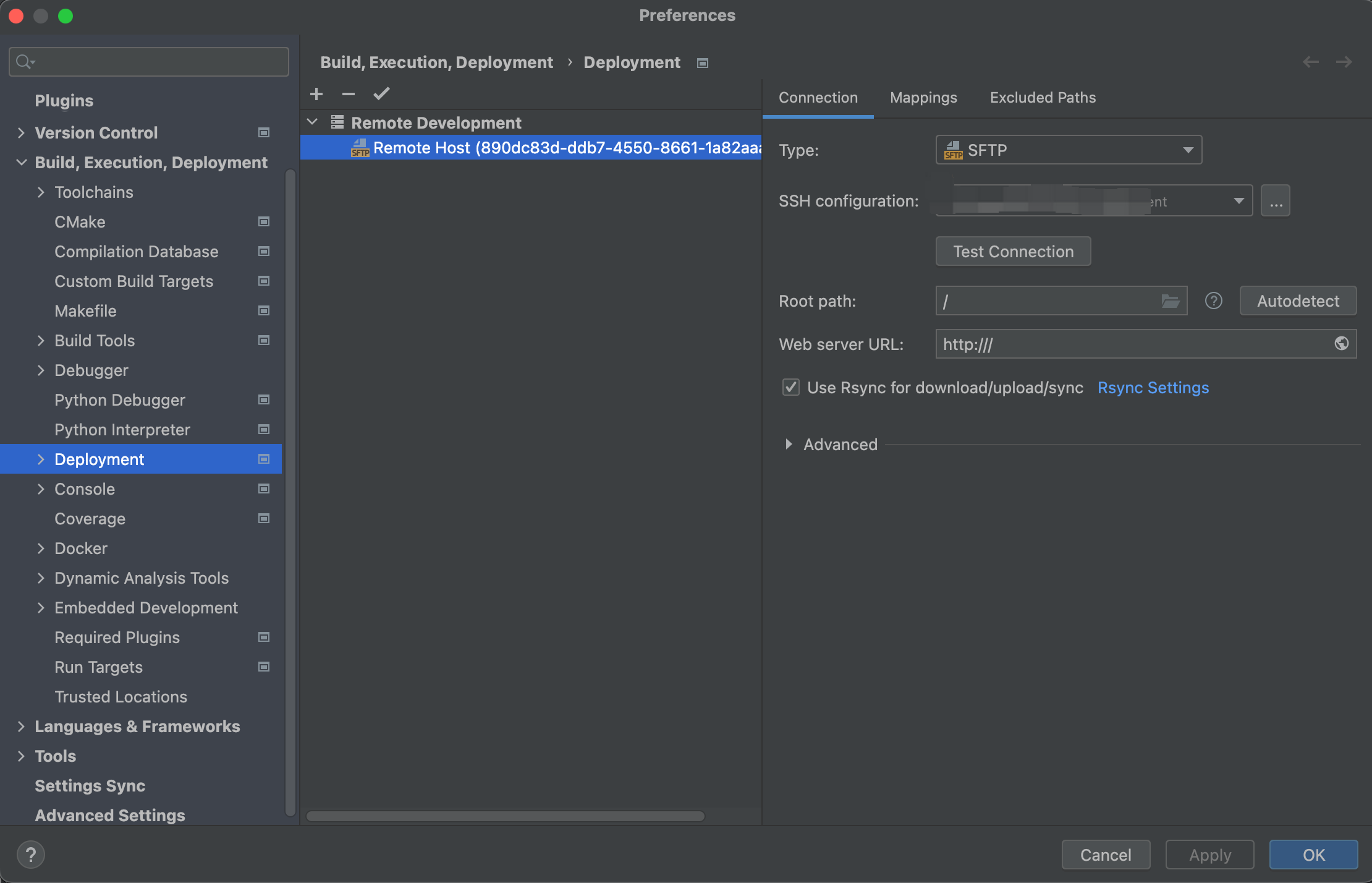
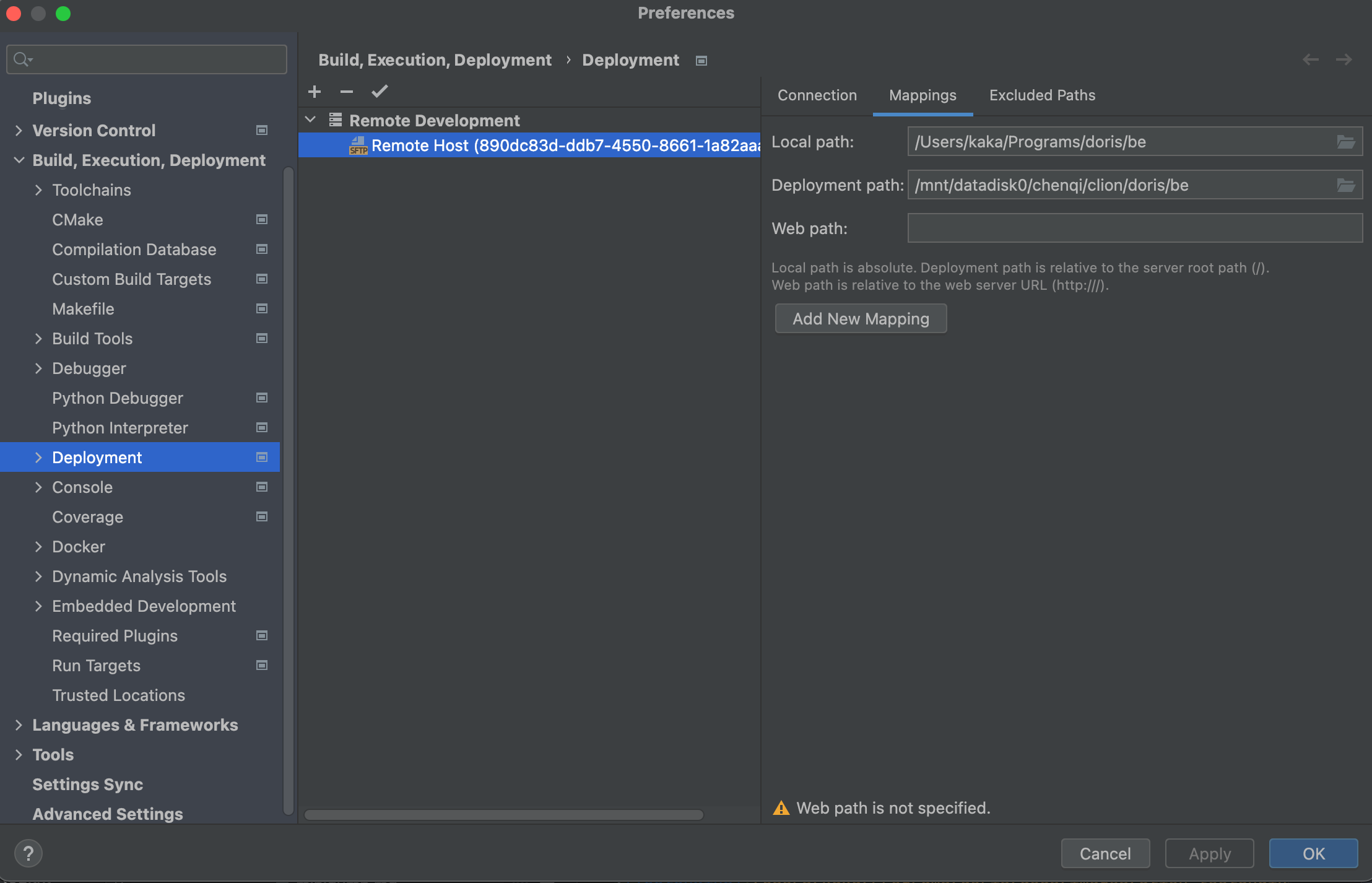
- Local Path:
-
Copy the
gensrcdirectory that was generated on the remote server during compilation to the parent directory of the Deployment Path:cp -R /mnt/datadisk0/chenqi/doris/gensrc /mnt/datadisk0/chenqi/clion/doris/gensrc -
Open Preferences → Build, Execution, Deployment → Toolchains and add the toolchain for the remote environment (CMake, GCC, G++, GDB, and so on).
ImportantIn the Environment file field, fill in the path to the
env.shfile in the Doris code on the remote server.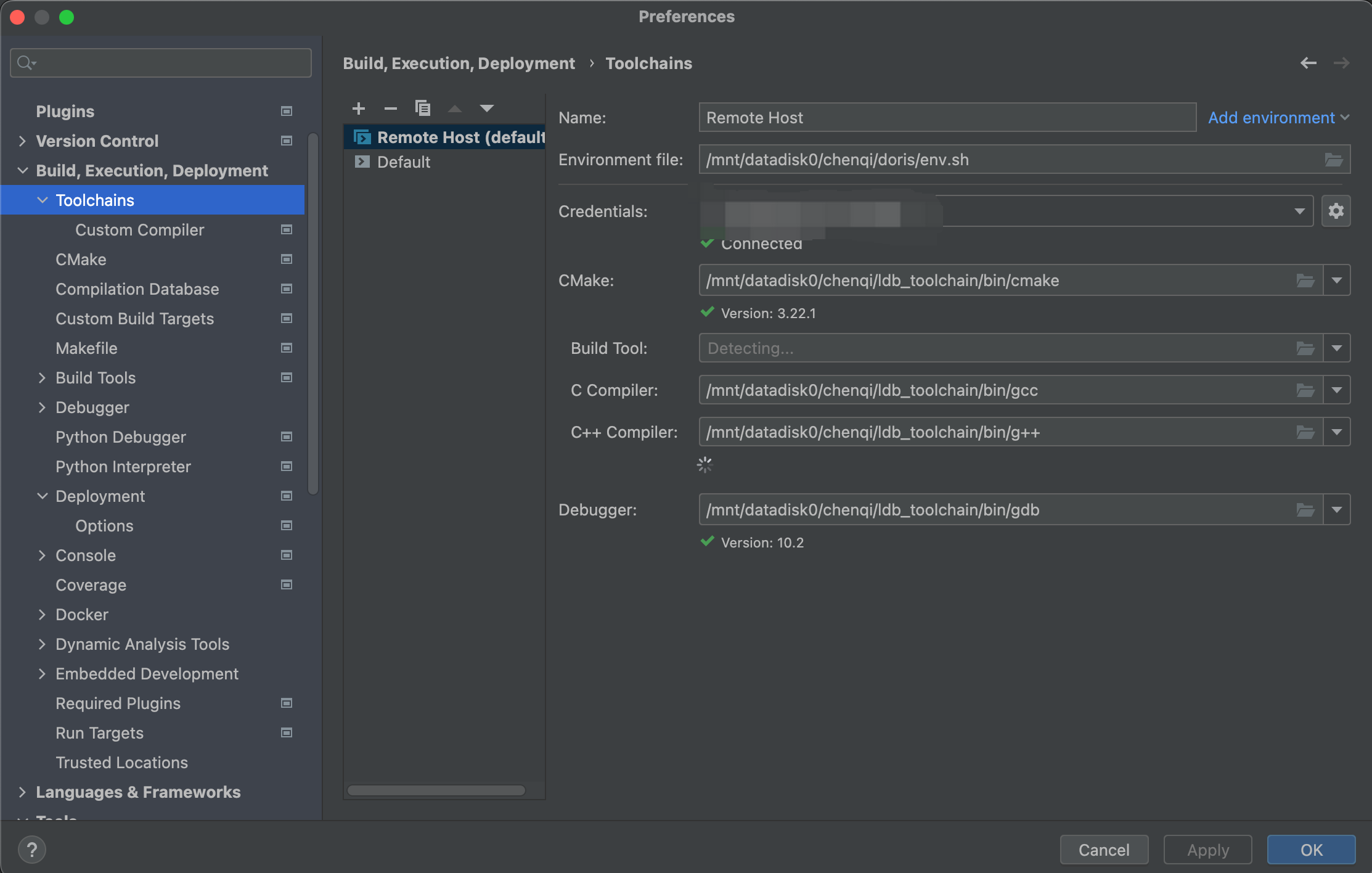
-
Open Preferences → Build, Execution, Deployment → CMake and add the following to CMake options:
-DDORIS_JAVA_HOME=/path/to/remote/JAVA_HOMESet this to the
JAVA_HOMEpath on the remote server. Otherwise,jni.hcannot be found. -
In CLion, right-click and select Load CMake Project. This action synchronizes the code to the remote server and generates the CMake build files.
3. Run and debug remote BE from local CLion
-
In Preferences → Build, Execution, Deployment → CMake, configure CMake. You can configure different targets such as Debug or Release, and set ToolChain to the remote toolchain you configured earlier.
To run and debug unit tests, add
-DMAKE_TEST=ONto CMake options (it is off by default). -
On the remote server, copy the
outputdirectory to a separate path:cp -R /mnt/datadisk0/chenqi/doris/output /mnt/datadisk0/chenqi/clion/doris/doris_be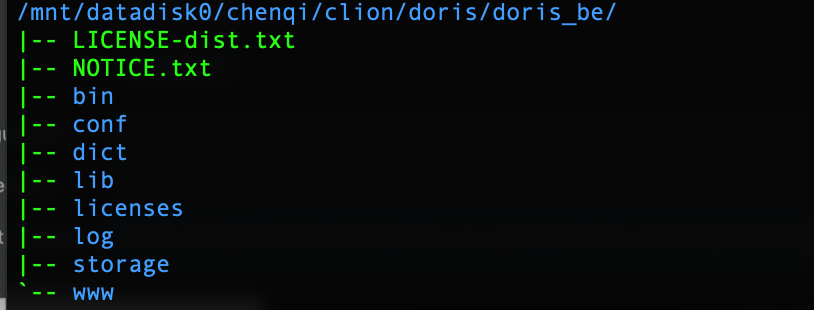
-
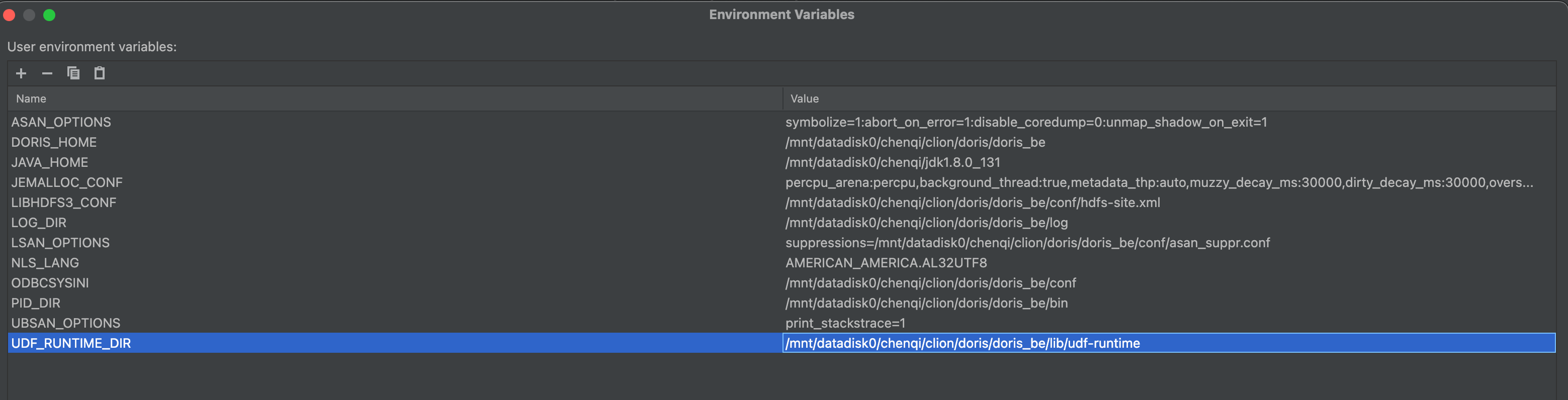
In CLion, select the
doris_betarget (Debug or Release) and configure it. Use the environment variables exported inbe/bin/start_be.shas a reference, and point each variable to the corresponding path on the remote server: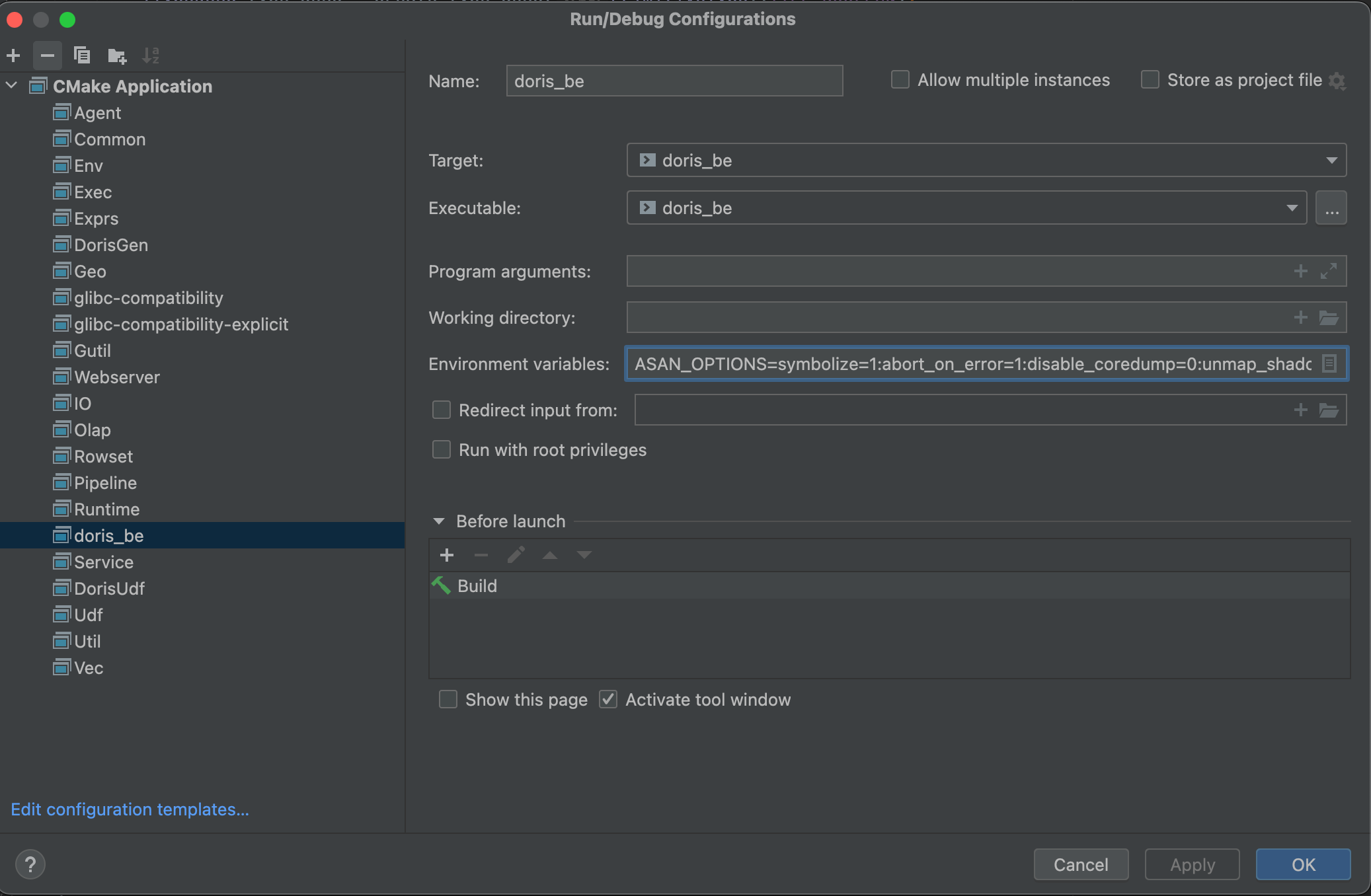
-
Click Run to compile and start BE, or click Debug to compile and debug BE.
Option 2: macOS Local Development
On macOS, you can compile and debug BE entirely locally, with no remote server required. Before you start, complete the dependency installation and code checkout described in macOS compilation.
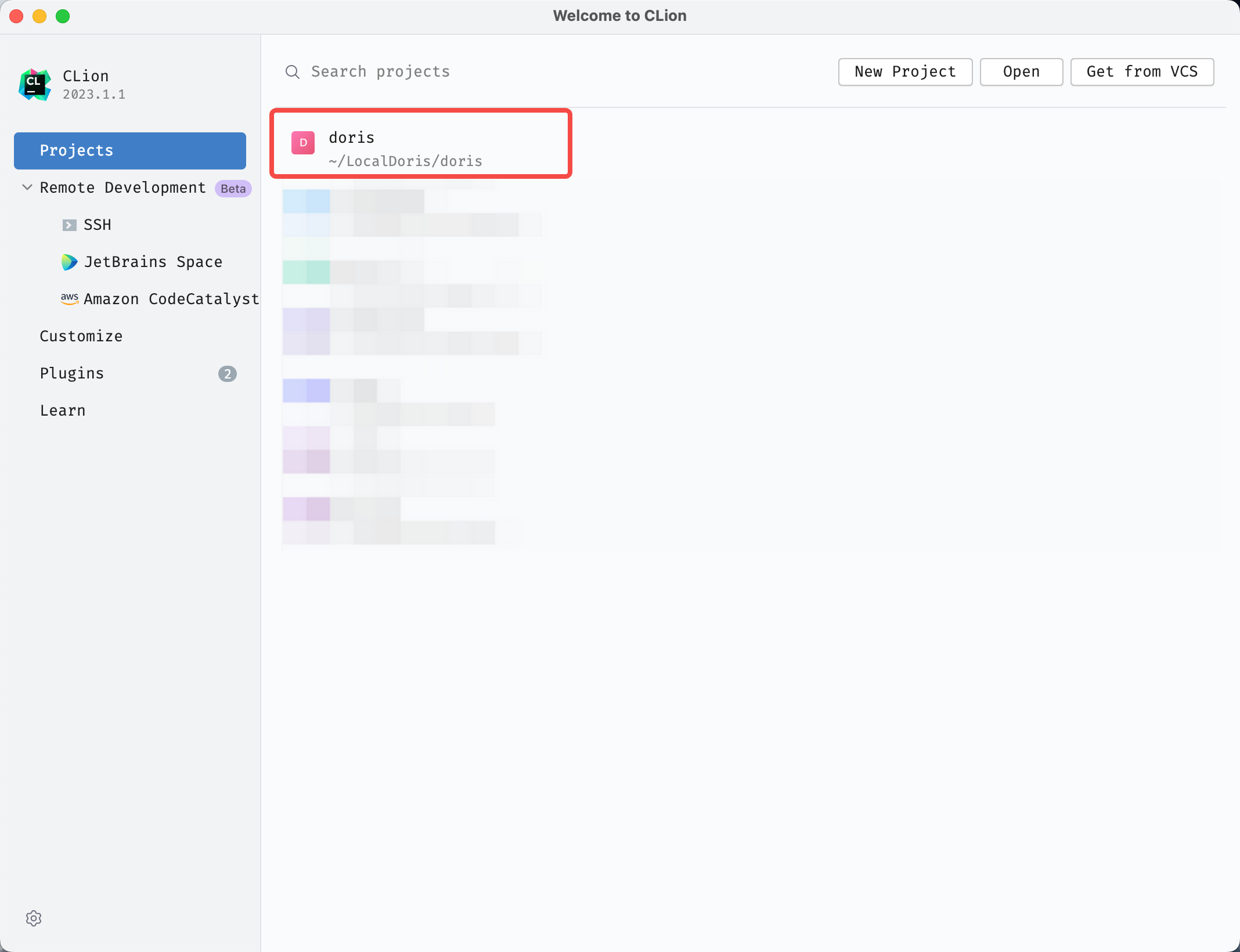
1. Open the Doris source root directory
2. Configure CLion
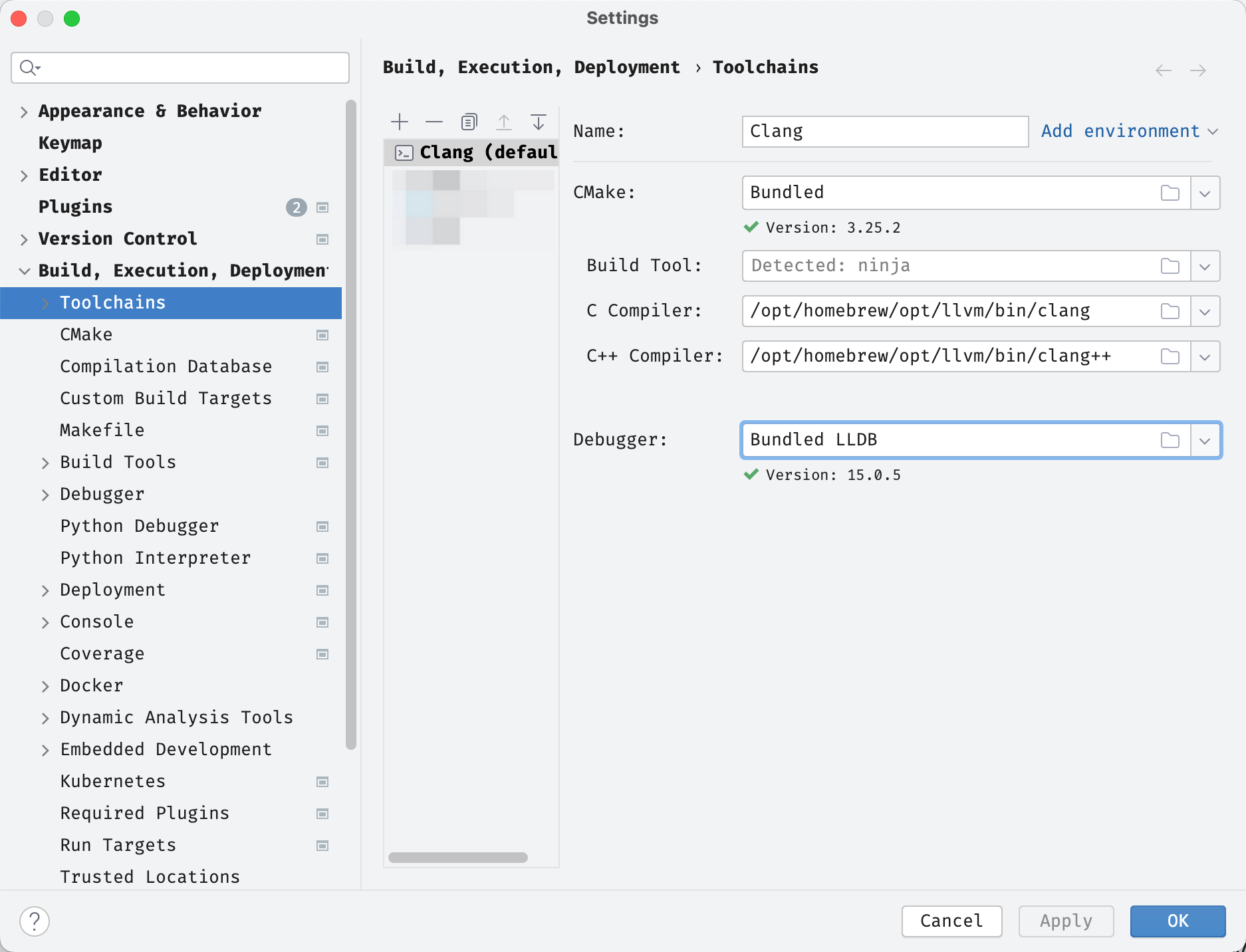
Configure the toolchain: configure according to the figure below. All detections should pass.
Configure CMake: configure according to the figure below.
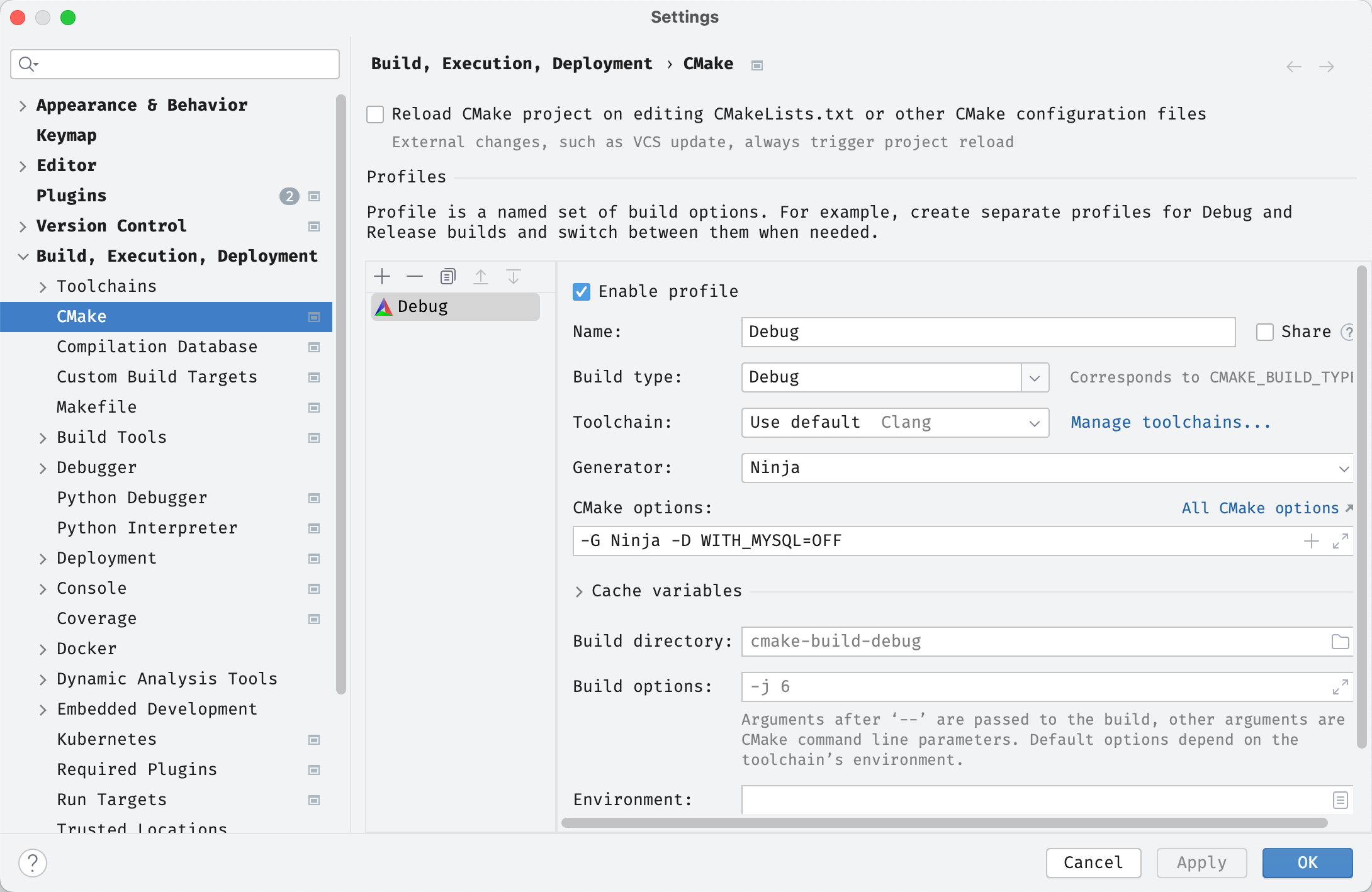
After confirming the configuration, CLion automatically loads the CMake file the first time. If it does not load automatically, right-click $DORIS_HOME/be/CMakeLists.txt and select Load.
3. Configure Debug BE
Select Edit Configurations:
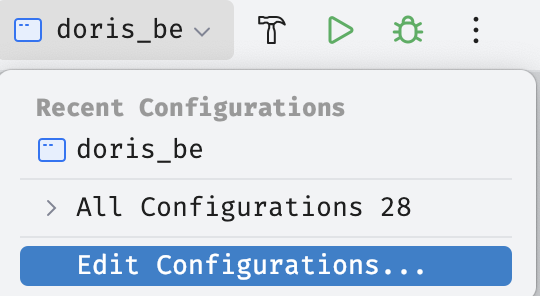
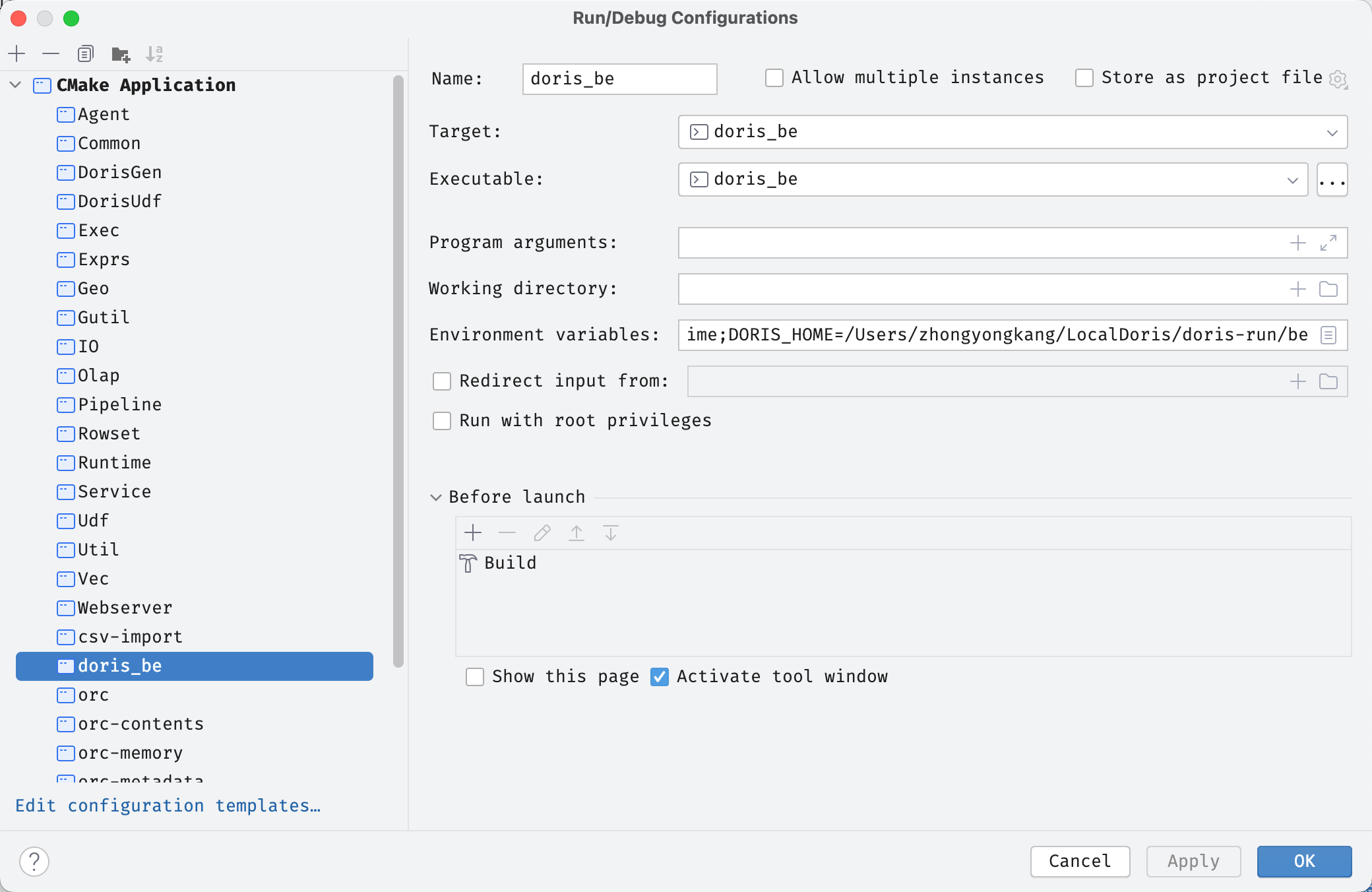
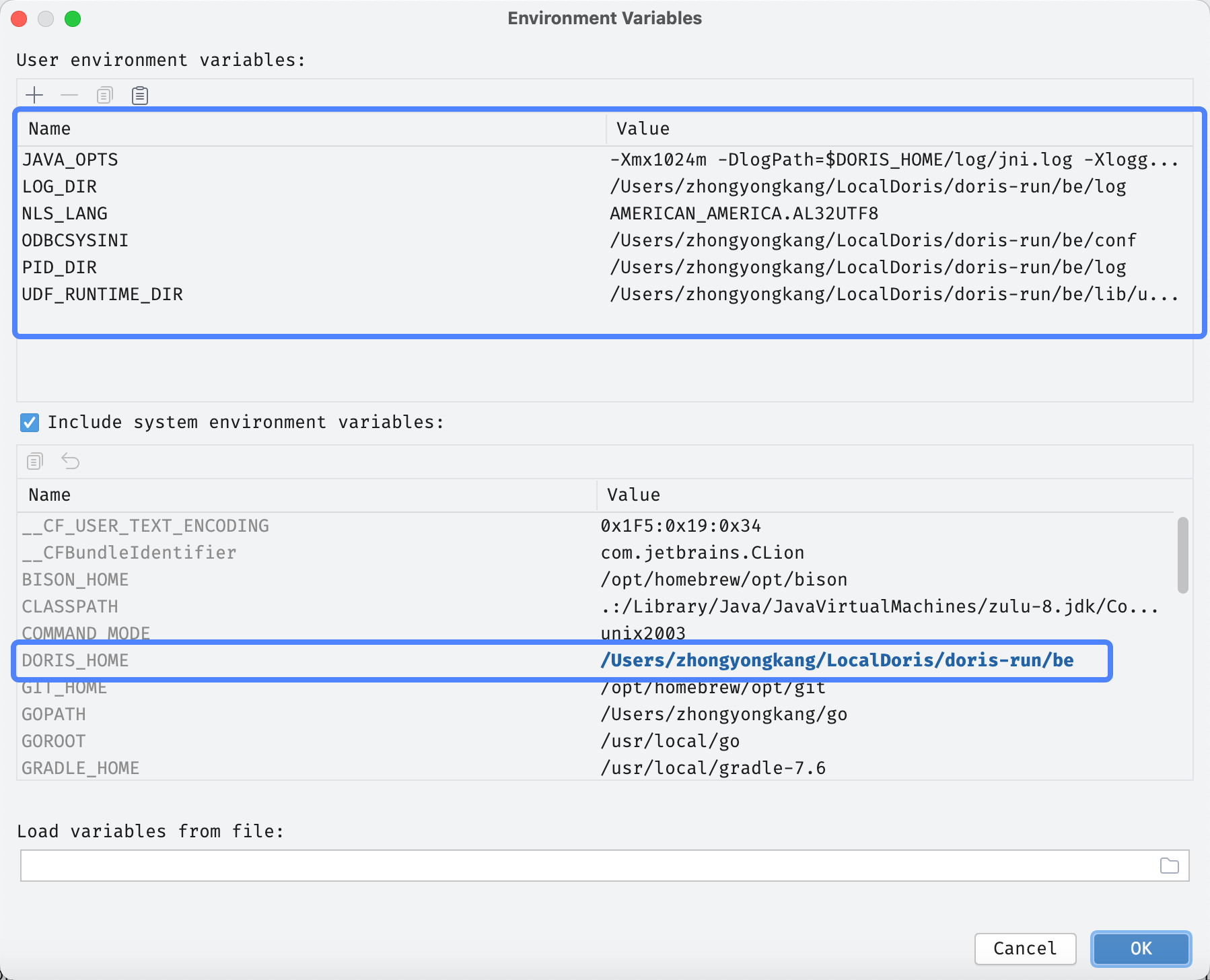
Add environment variables for doris_be. Use the environment variables exported in be/bin/start_be.sh as a reference. The Doris directory values in the environment variables should point to the runtime directory you copied out. Reference environment variables:
| Environment variable | Example value | Description |
|---|---|---|
JAVA_OPTS | -Xmx1024m -DlogPath=$DORIS_HOME/log/jni.log -Dsun.java.command=DorisBE -XX:-CriticalJNINatives -DJDBC_MIN_POOL=1 -DJDBC_MAX_POOL=100 -DJDBC_MAX_IDLE_TIME=300000 | JVM startup arguments |
LOG_DIR | ~/DorisDev/doris-run/be/log | BE log directory |
NLS_LANG | AMERICAN_AMERICA.AL32UTF8 | Oracle JDBC encoding |
ODBCSYSINI | ~/DorisDev/doris-run/be/conf | ODBC config directory |
PID_DIR | ~/DorisDev/doris-run/be/log | PID file directory |
UDF_RUNTIME_DIR | ~/DorisDev/doris-run/be/lib/udf-runtime | UDF runtime directory |
DORIS_HOME | ~/DorisDev/doris-run/be | BE runtime directory |
JAVA_OPTS=-Xmx1024m -DlogPath=$DORIS_HOME/log/jni.log -Dsun.java.command=DorisBE -XX:-CriticalJNINatives -DJDBC_MIN_POOL=1 -DJDBC_MAX_POOL=100 -DJDBC_MAX_IDLE_TIME=300000
LOG_DIR=~/DorisDev/doris-run/be/log
NLS_LANG=AMERICAN_AMERICA.AL32UTF8
ODBCSYSINI=~/DorisDev/doris-run/be/conf
PID_DIR=~/DorisDev/doris-run/be/log
UDF_RUNTIME_DIR=~/DorisDev/doris-run/be/lib/udf-runtime
DORIS_HOME=~/DorisDev/doris-run/be
4. Start debugging
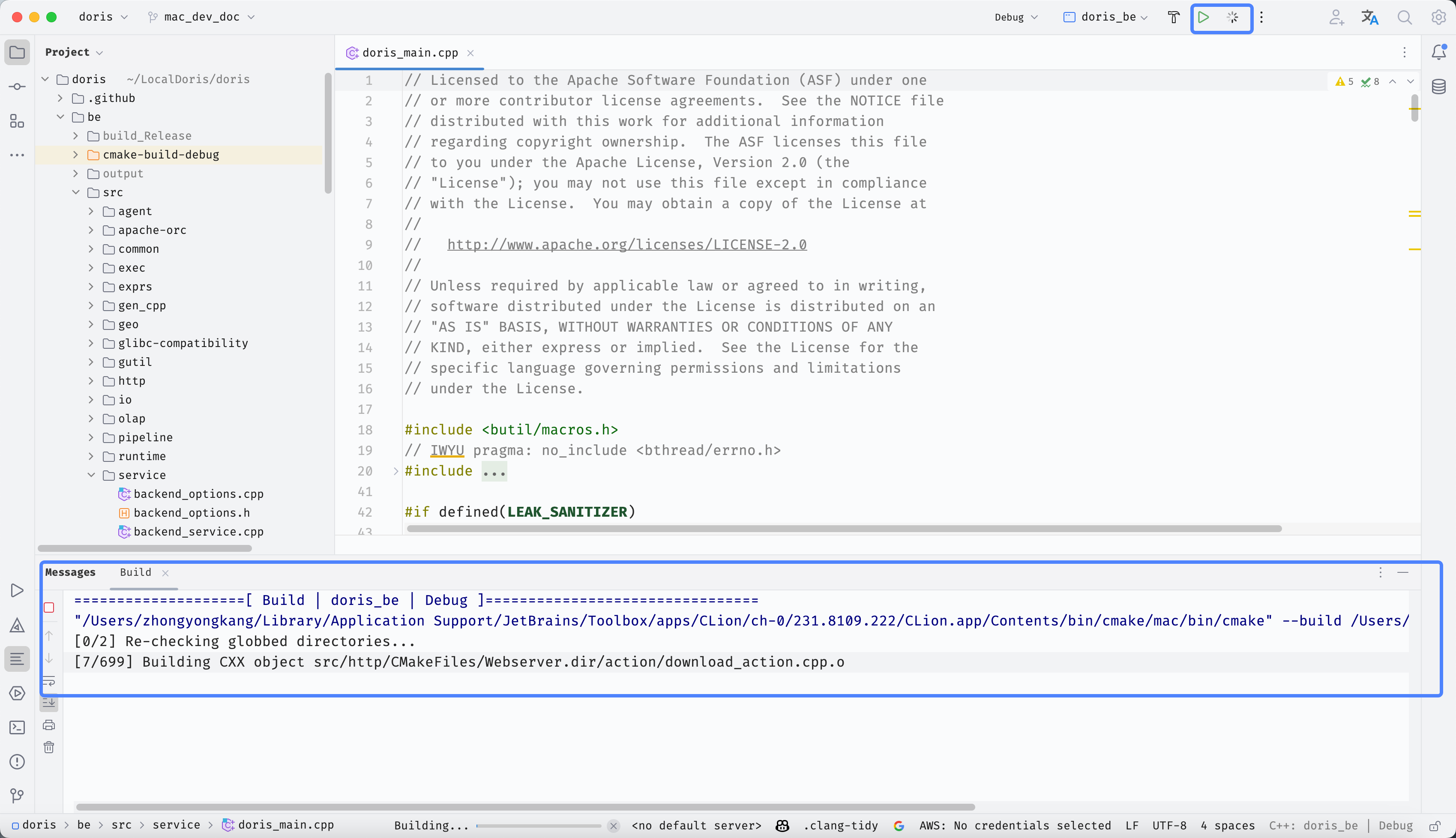
Click Run or Debug. CLion starts compiling, and BE starts after compilation completes.
FAQ
Q1: Remote compilation reports jni.h not found
The -DDORIS_JAVA_HOME option in CMake options is not correctly set to the remote JAVA_HOME. See step 5 under Option 1, section 2.
Q2: CLion cannot find symbols or shows a lot of red underlines
The gensrc directory was not copied to the parent directory of the Deployment Path, or Load CMake Project was not clicked to reload.
Q3: BE exits immediately after startup
The environment variables DORIS_HOME, PID_DIR, or LOG_DIR are not configured, or the paths do not exist. Check the environment variable table above; all paths must be created in advance.