Setting Up the FE Development Environment with IntelliJ IDEA
This document describes how to set up the Doris FE (Frontend) development and debugging environment with IntelliJ IDEA on Linux, macOS, and Windows.
1. Environment Preparation
Requirements: JDK 1.8+, IntelliJ IDEA.
1.1 Pull the Source Code
Download the Doris source code from GitHub to your local machine:
git clone https://github.com/apache/doris.git
When opening the project with IDEA, it is recommended to open the fe subdirectory under the source tree directly rather than the entire Doris repository root. This avoids later conflicts with CLion (which opens the be directory).
1.2 Install Thrift
If you are only doing FE development and have not built the full thirdparty, you need to install Thrift separately and copy or symlink it into the thirdparty/installed/bin directory.
| Doris version | Matching Thrift version |
|---|---|
| 0.15 ~ 1.2 | 0.13.0 |
| 1.2+ | 0.16.0 |
The following uses 0.16.0 as an example; 0.13.0 follows the same procedure.
macOS
brew tap homebrew/core --force
brew tap-new $USER/local-tap
brew extract --version='0.16.0' thrift $USER/local-tap
brew install thrift@0.16.0
If the download fails, you can edit:
/usr/local/Homebrew/Library/Taps/$USER/homebrew-local-tap/Formula/thrift@0.16.0.rb
Change:
url "https://www.apache.org/dyn/closer.lua?path=thrift/0.16.0/thrift-0.16.0.tar.gz"
to:
url "https://archive.apache.org/dist/thrift/0.16.0/thrift-0.16.0.tar.gz"
Reference: https://gist.github.com/tonydeng/02e571f273d6cce4230dc8d5f394493c
Linux
wget https://archive.apache.org/dist/thrift/0.16.0/thrift-0.16.0.tar.gz
yum install -y autoconf automake libtool cmake ncurses-devel openssl-devel lzo-devel zlib-devel gcc gcc-c++
tar zxvf thrift-0.16.0.tar.gz
cd thrift-0.16.0
./configure --without-tests
make
make install
After installation, check the version:
thrift --version
Windows
- Download: http://archive.apache.org/dist/thrift/0.16.0/thrift-0.16.0.exe
- Copy it to
./thirdparty/installed/bin
If you have already built Doris in full, you do not need to install Thrift again. You can reuse
$DORIS_HOME/thirdparty/installed/bin/thriftdirectly.
2. Generate Code
Linux / macOS
Run the following in the source root directory:
sh generated-source.sh
Wait until Done is displayed.
Versions 1.2 and earlier use
cd fe && mvn generate-sources. If an error occurs, runcd fe && mvn clean install -DskipTests.
You can also run the corresponding Maven command from the IDEA UI:
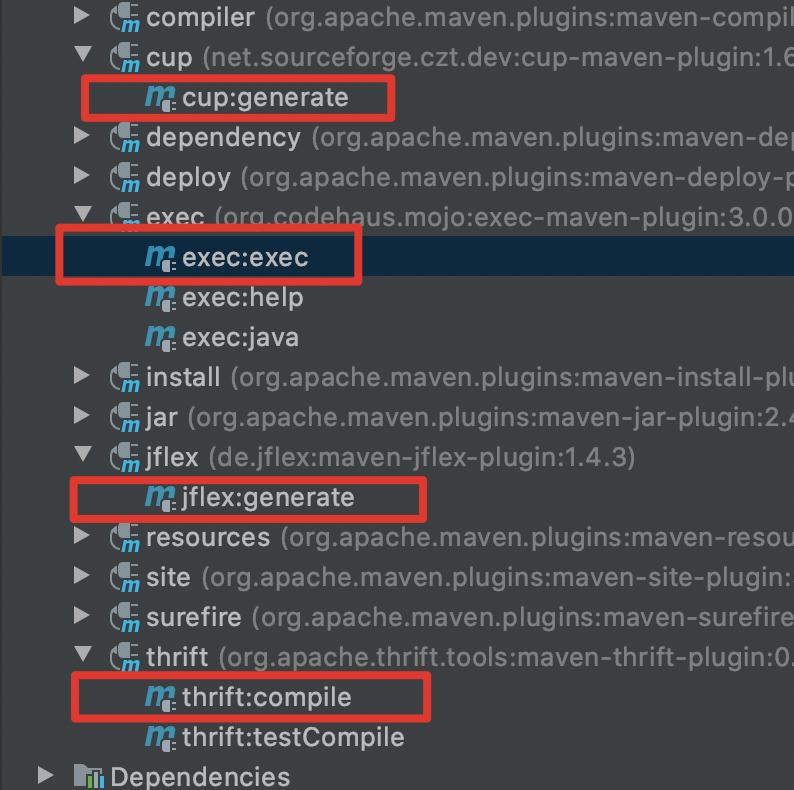
Windows
On Windows, you may not be able to run make or shell scripts. Use one of the following approaches:
- Copy the generated
fe/fe-core/target/generated-sourcesdirectory from a Linux machine to the corresponding location on Windows. - Mount the local directory with Docker and generate the auto-generated code inside Docker (see Compile from source).
3. Generate the Help Documentation
If you have not generated the Help documentation yet, run:
cd doris/docs
sh build_help_zip.sh
cp build/help-resource.zip ../fe/fe-core/target/classes
4. Configure Debugging in IDEA
4.1 Import the Project
Import the fe project with IDEA.
4.2 Prepare the Directories
Create the directories required for debugging under the fe directory (in newer versions this directory may already exist):
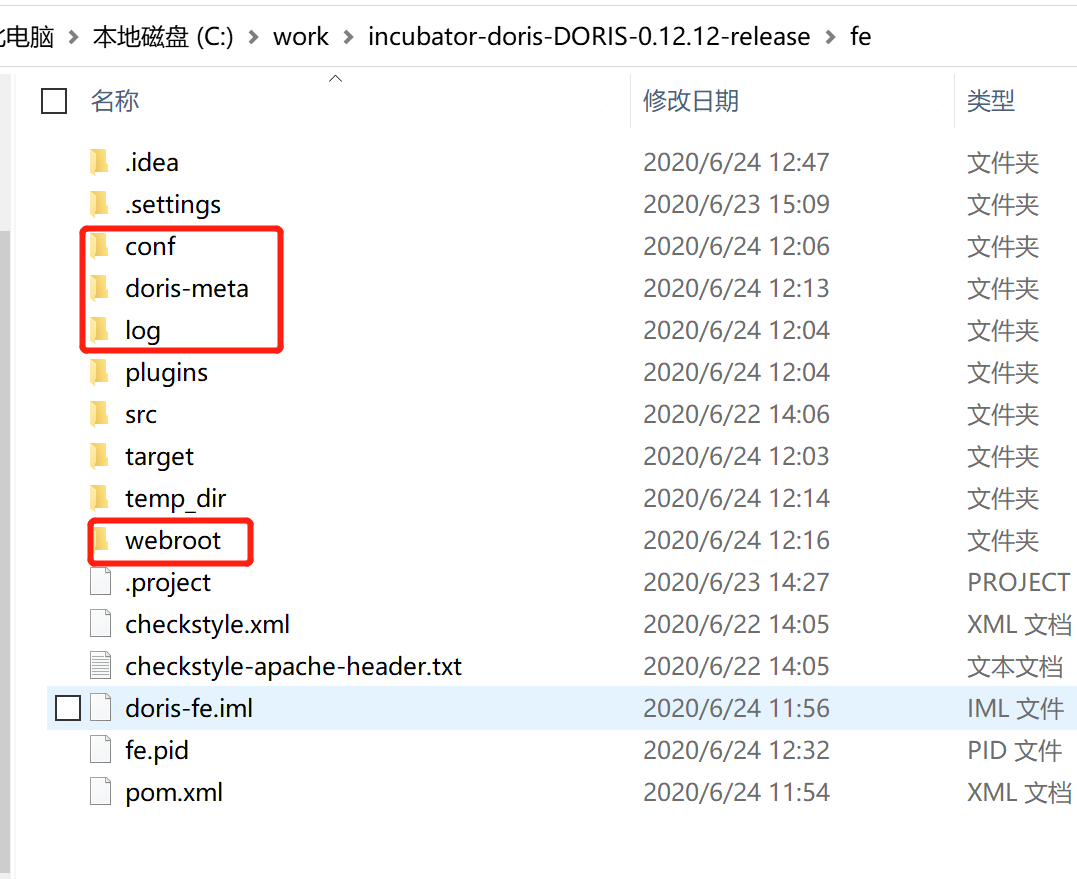
4.3 Build the UI (Optional)
Build the ui project and copy the files from the ui/dist/ directory into webroot. You can skip this step if you do not need to view the Doris UI.
4.4 Configure fe.conf
The following is a reference conf/fe.conf configuration that you can adjust as needed:
LOG_DIR = ${DORIS_HOME}/log

DATE = `date +%Y%m%d-%H%M%S`
JAVA_OPTS="-Xmx2048m -XX:+UseMembar -XX:SurvivorRatio=8 -XX:MaxTenuringThreshold=7 -XX:+PrintGCDateStamps -XX:+PrintGCDetails -XX:+UseConcMarkSweepGC -XX:+UseParNewGC -XX:+CMSClassUnloadingEnabled -XX:-CMSParallelRemarkEnabled -XX:CMSInitiatingOccupancyFraction=80 -XX:SoftRefLRUPolicyMSPerMB=0 -Xloggc:$DORIS_HOME/log/fe.gc.log.$DATE"

# For jdk 9+, this JAVA_OPTS will be used as default JVM options
JAVA_OPTS_FOR_JDK_9="-Xmx4096m -XX:SurvivorRatio=8 -XX:MaxTenuringThreshold=7 -XX:+CMSClassUnloadingEnabled -XX:-CMSParallelRemarkEnabled -XX:CMSInitiatingOccupancyFraction=80 -XX:SoftRefLRUPolicyMSPerMB=0 -Xlog:gc*:$DORIS_HOME/log/fe.gc.log.$DATE:time"

sys_log_level = INFO

http_port = 8030
rpc_port = 9020
query_port = 9030
arrow_flight_sql_port = -1
edit_log_port = 9010

# priority_networks = 10.10.10.0/24;192.168.0.0/16
If you run BE on macOS through Docker for Mac, since docker for Mac does not support Host mode, you need to expose BE ports with -p. In addition, priority_networks in fe.conf must be set to an IP reachable from inside the container (for example, the Wi-Fi IP).
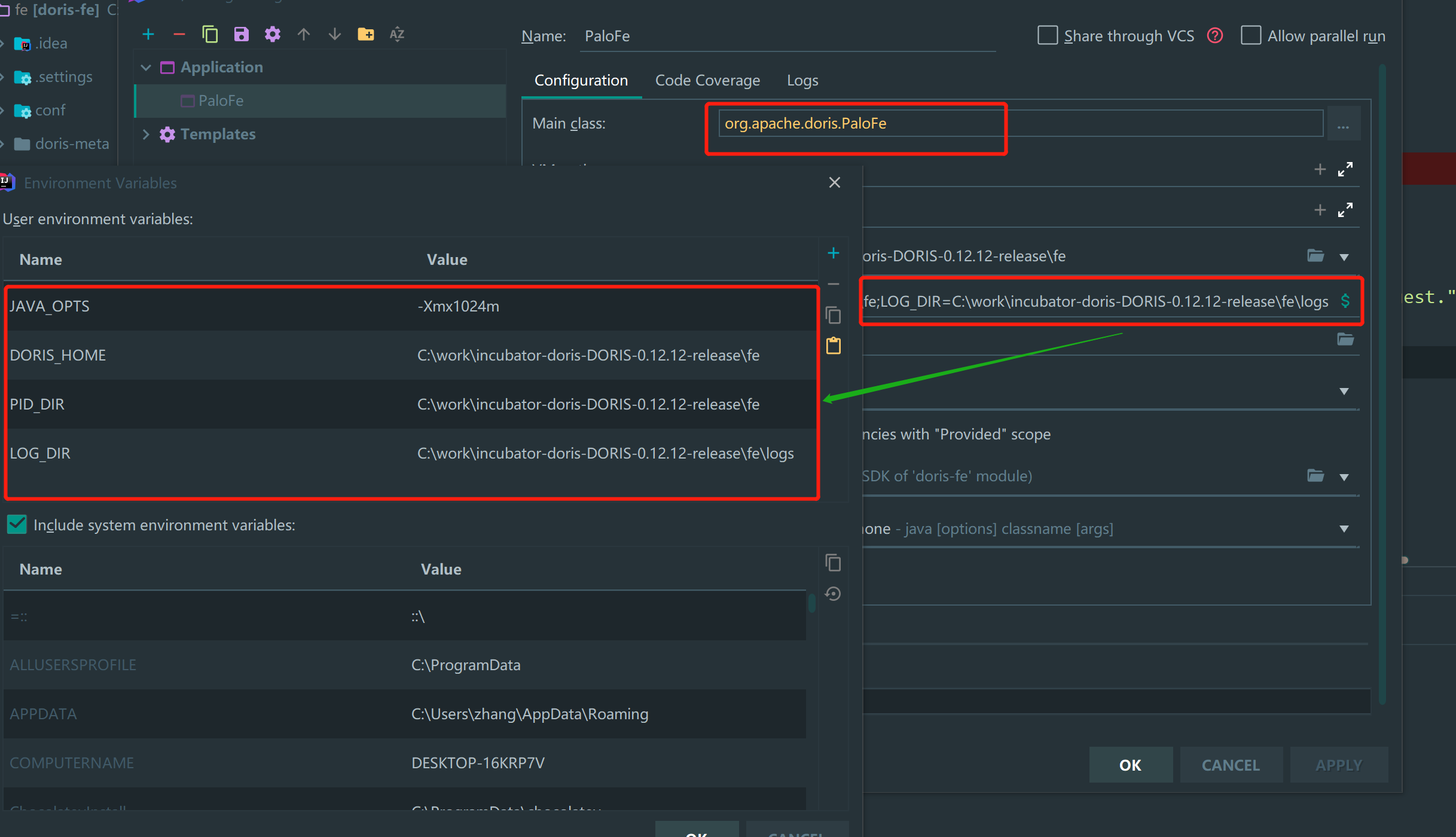
4.5 Set the IDEA Run Environment Variables
Set the run environment variables in IDEA:
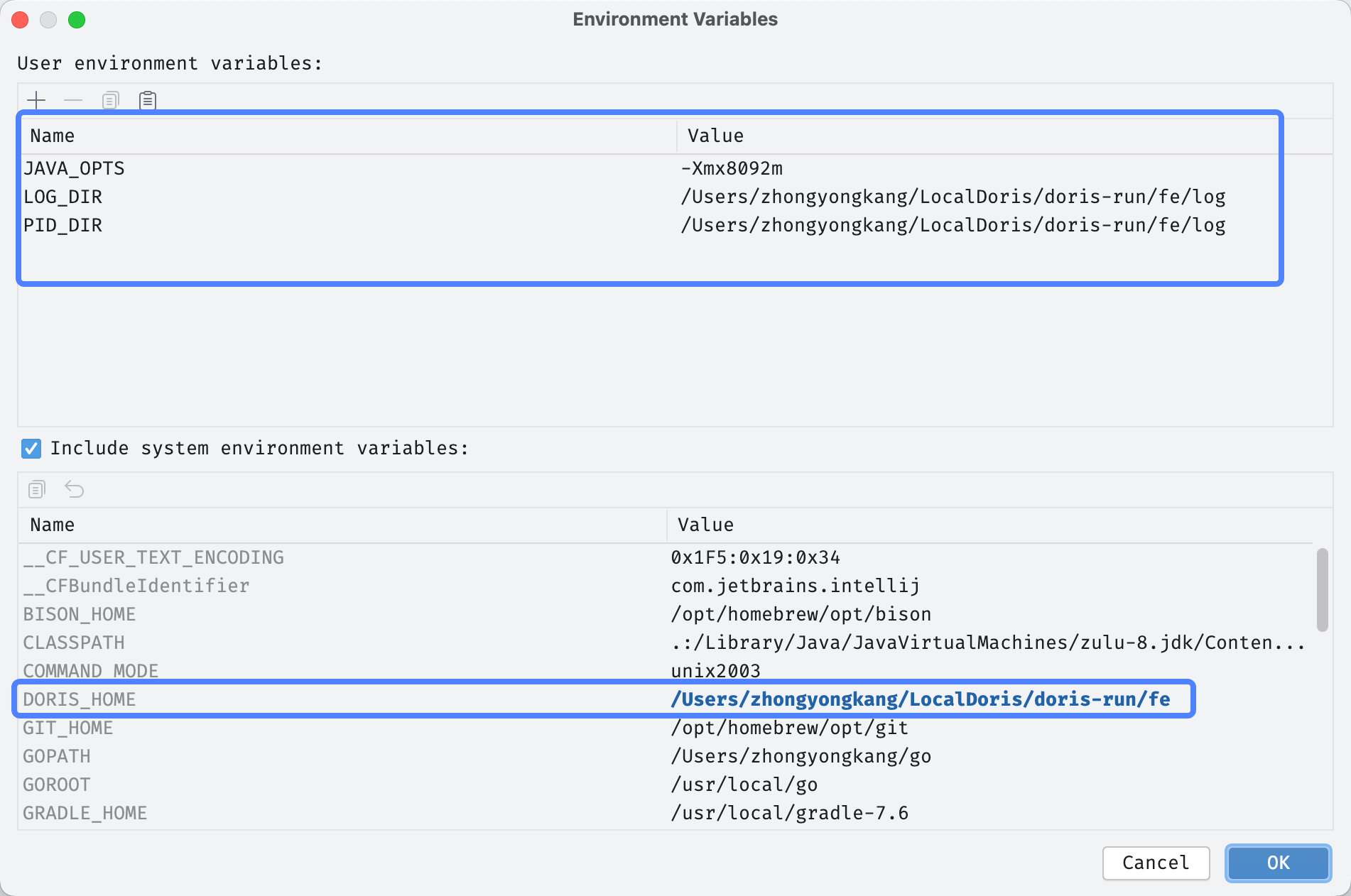
Reference configuration on macOS (the DORIS_HOME environment variable points to the Doris runtime directory you copied out):
| Environment variable | Example value | Description |
|---|---|---|
JAVA_OPTS | -Xmx8092m | JVM heap parameters |
LOG_DIR | ~/DorisDev/doris-run/fe/log | FE log directory |
PID_DIR | ~/DorisDev/doris-run/fe/log | PID file directory |
DORIS_HOME | ~/DorisDev/doris-run/fe | FE runtime directory (not the source dir) |
JAVA_OPTS=-Xmx8092m
LOG_DIR=~/DorisDev/doris-run/fe/log
PID_DIR=~/DorisDev/doris-run/fe/log
DORIS_HOME=~/DorisDev/doris-run/fe
4.6 Configure Modify options
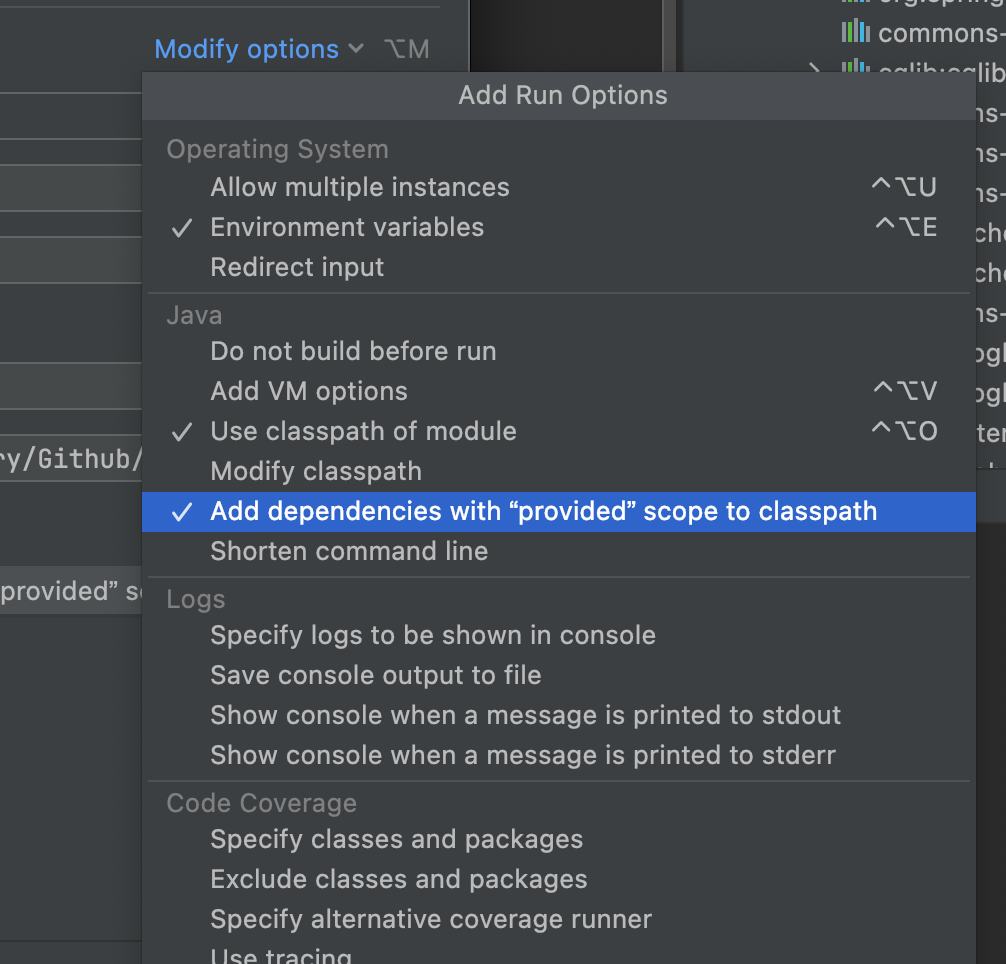
Because some dependencies are scoped as provided, IDEA needs a special setting: in Run/Debug Configurations, click Modify options on the right and check Add dependencies with "provided" scope to classpath.
5. Start FE
Click Run or Debug. IDEA starts compiling, and FE starts up once compilation finishes.
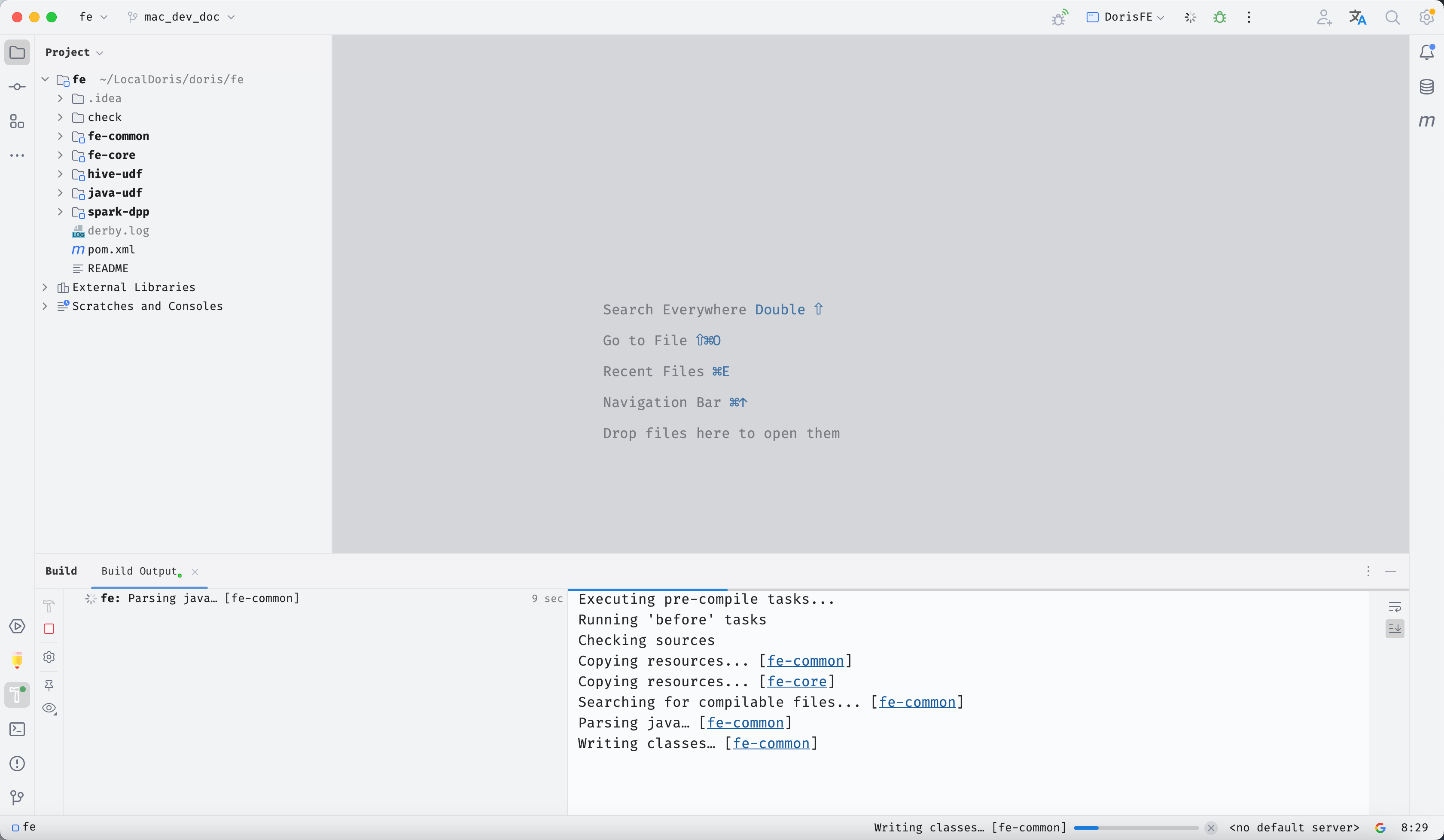
You can now begin FE development and debugging.
6. Frequently Asked Questions (FAQ)
Q1: Startup throws ClassNotFoundException or some dependencies cannot be found
Add dependencies with "provided" scope to classpath was not checked in Run/Debug Configurations. See Section 4.6 to resolve.
Q2: generated-source.sh reports thrift version mismatch
The version of thirdparty/installed/bin/thrift does not match your Doris version. Reinstall according to the version mapping table in Section 1.2.
Q3: FE cannot be accessed by BE or clients after startup
Check whether priority_networks in fe.conf is set to a subnet reachable from the local machine or container. For the macOS + Docker BE case, see the tip in Section 4.4.