CloudCanal
CloudCanal is a fully self-developed, visual, and automated data migration and synchronization tool. It supports data interchange between 30+ popular relational databases, real-time data warehouses, message middleware, cache databases, and search engines. It offers real-time efficiency, precise interconnection, stability and scalability, one-stop operation, hybrid deployment, and complex data transformation.
Feature Description
CloudCanal provides a visual interface that makes it easy to perform schema migration, full data migration, incremental synchronization, and verification and correction. In addition, you can configure parameters to achieve more fine-grained, customized data synchronization. The following data sources are currently supported for integration into Doris.
| Source Data Source | Schema Migration | Full Migration | Incremental Sync | Verification and Correction |
|---|---|---|---|---|
| MySQL/MariaDB/AuroraMySQL | Supported | Supported | Supported | Supported |
| Oracle | Supported | Supported | Supported | Supported |
| PostgreSQL/AuroraPostgreSQL | Supported | Supported | Supported | Supported |
| SQL Server | Supported | Supported | Supported | Supported |
| Kafka | Not supported | Not supported | Supported | Not supported |
| AutoMQ | Not supported | Not supported | Supported | Not supported |
| TiDB | Supported | Supported | Supported | Supported |
| Hana | Supported | Supported | Supported | Supported |
| PolarDB-X | Supported | Supported | Supported | Supported |
For more features and parameter settings, refer to CloudCanal Data Link Documentation.
Download and Installation
Refer to Fresh Install (Docker Linux/MacOS) and visit the CloudCanal official website to download and install the private deployment edition.
Usage Example
The following uses MySQL as an example to demonstrate how to migrate and synchronize data from MySQL to Doris.
Add a Data Source
-
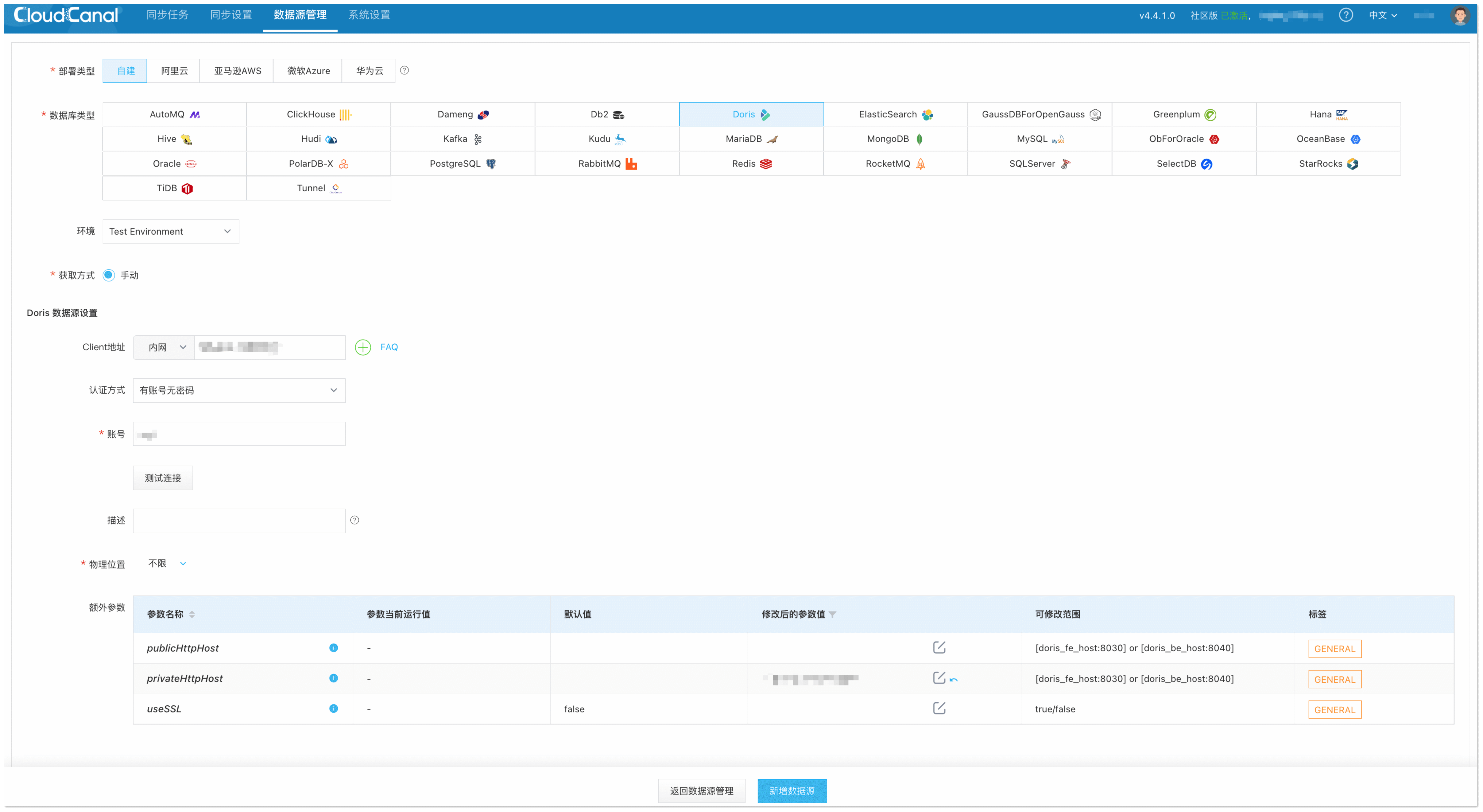
Log in to the CloudCanal console and click Data Source Management > Add Data Source.
-
Select MySQL and Doris data sources separately, and fill in the corresponding information.
-
Click Test Connection. After the connection succeeds, click Add Data Source to complete the data source addition.

Create a Task
-
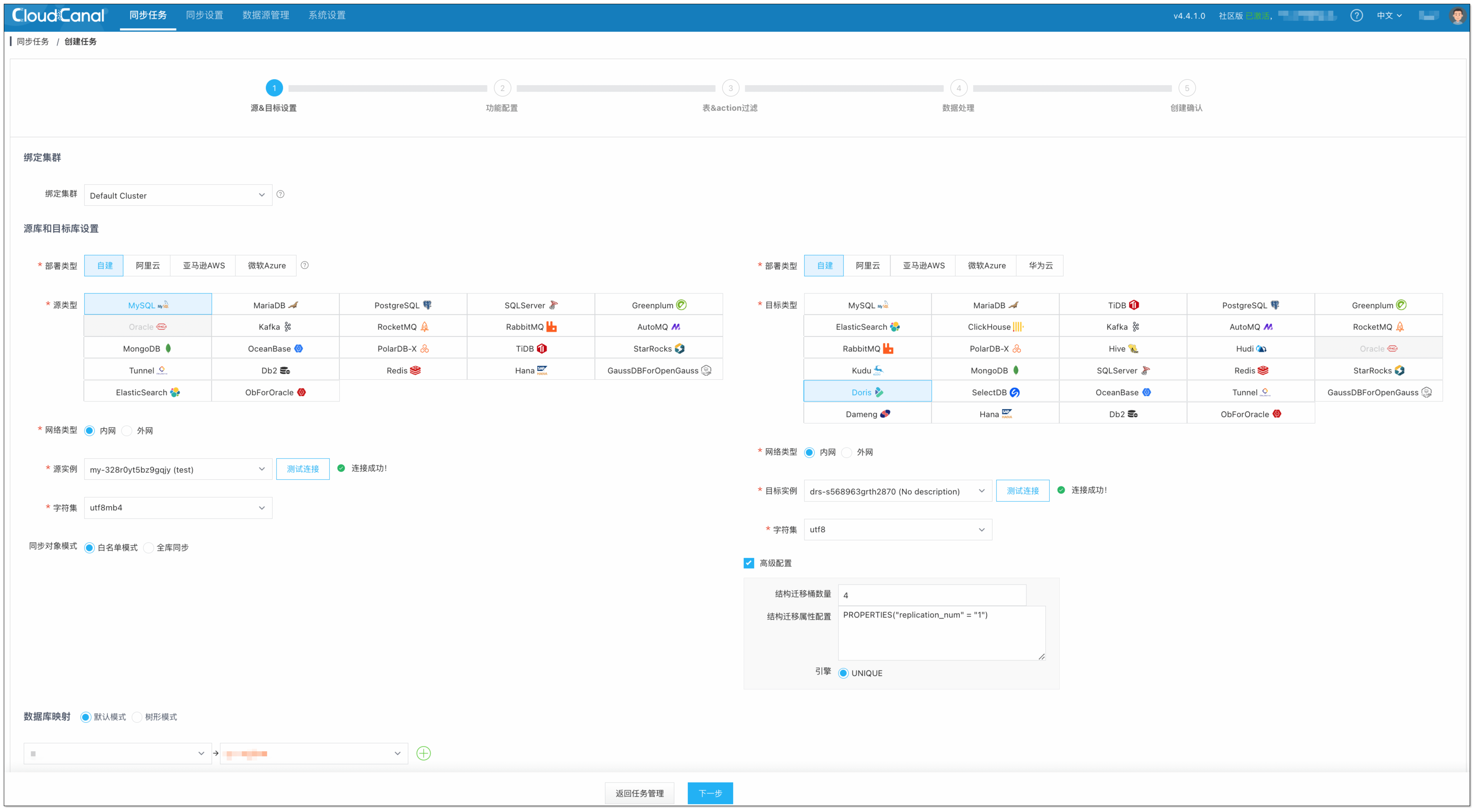
Click Sync Task > Create Task.
-
Select the source and target data sources, and click Test Connection for each.
-
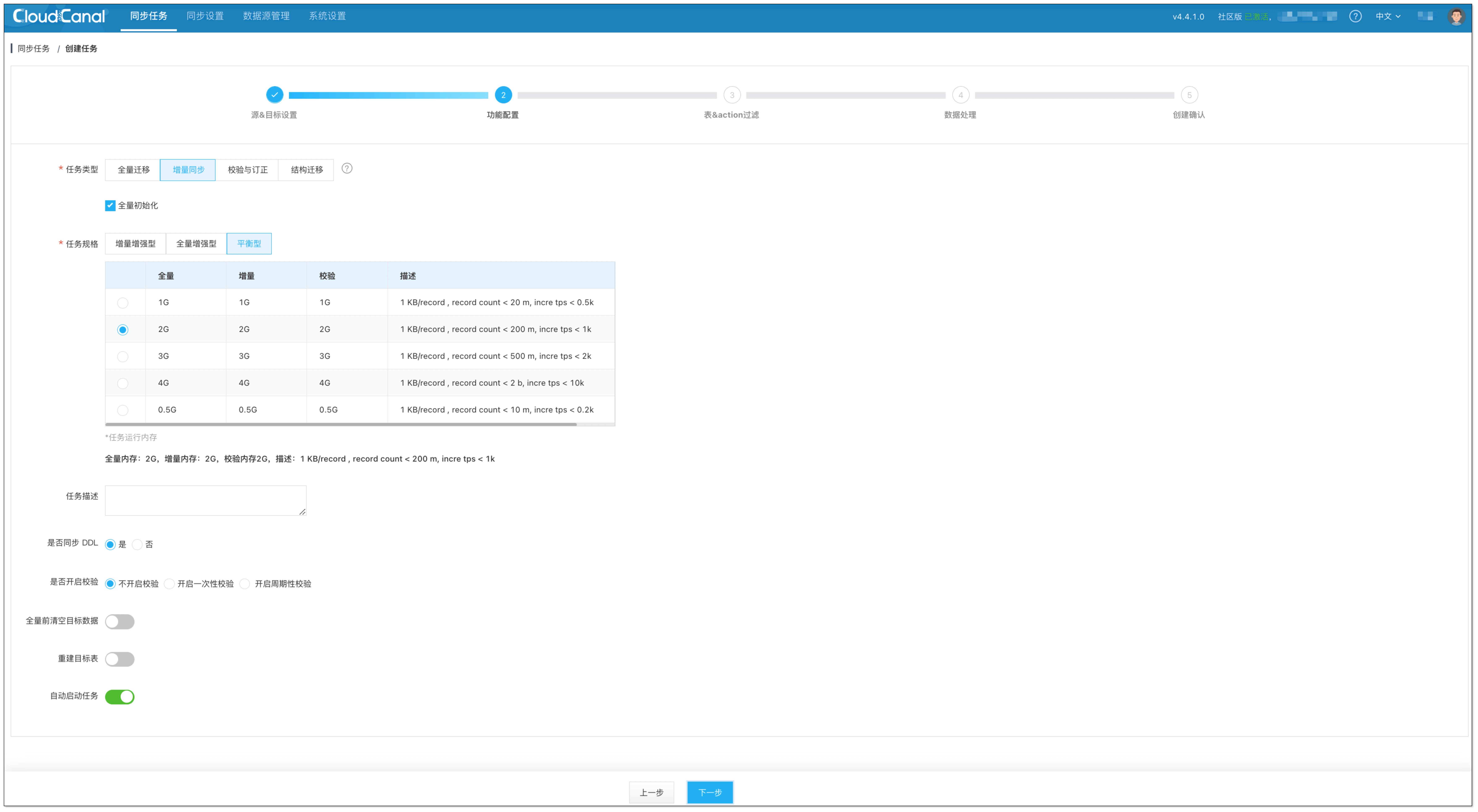
Select Data Sync and check Full Initialization.
-
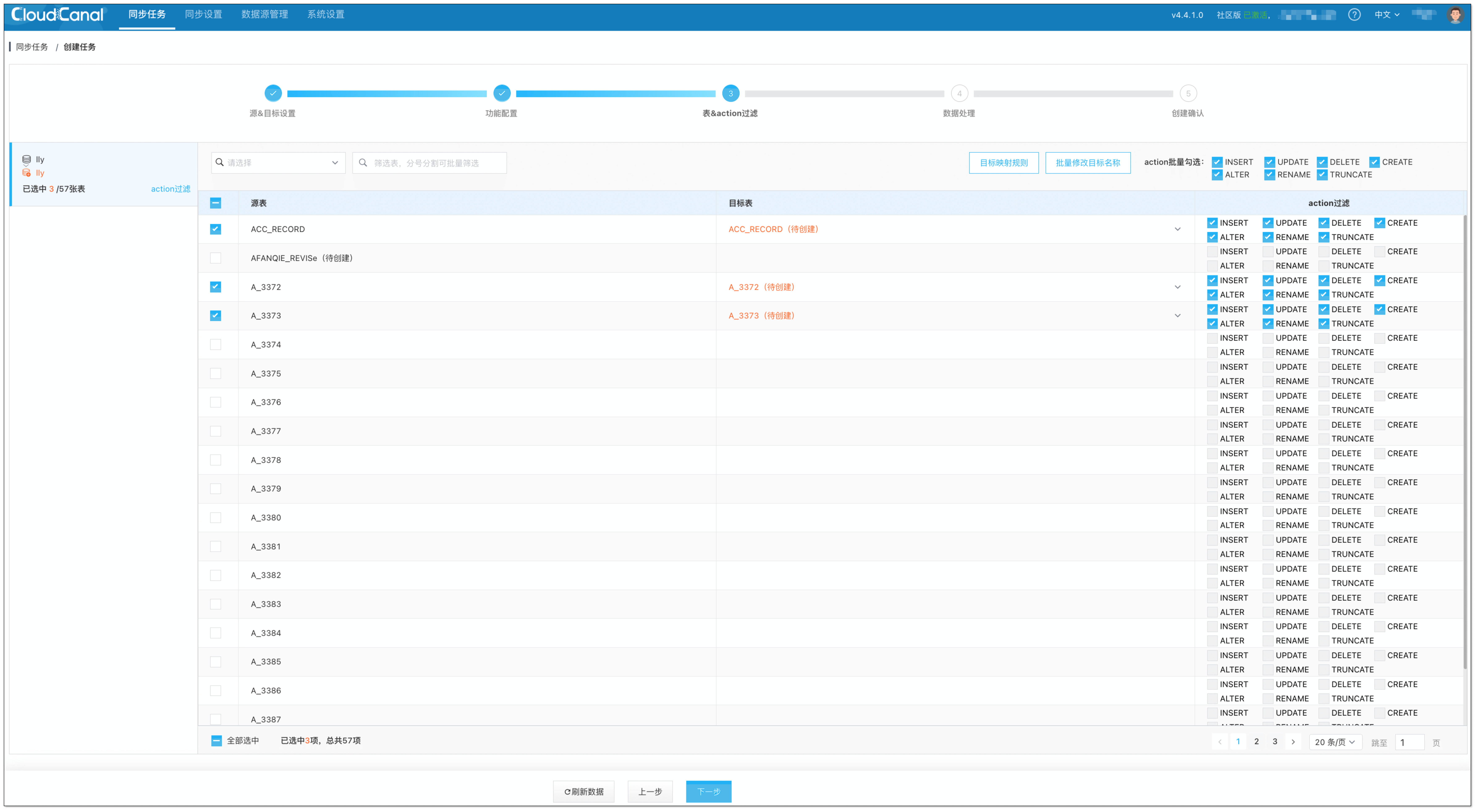
Select the tables to synchronize.
-
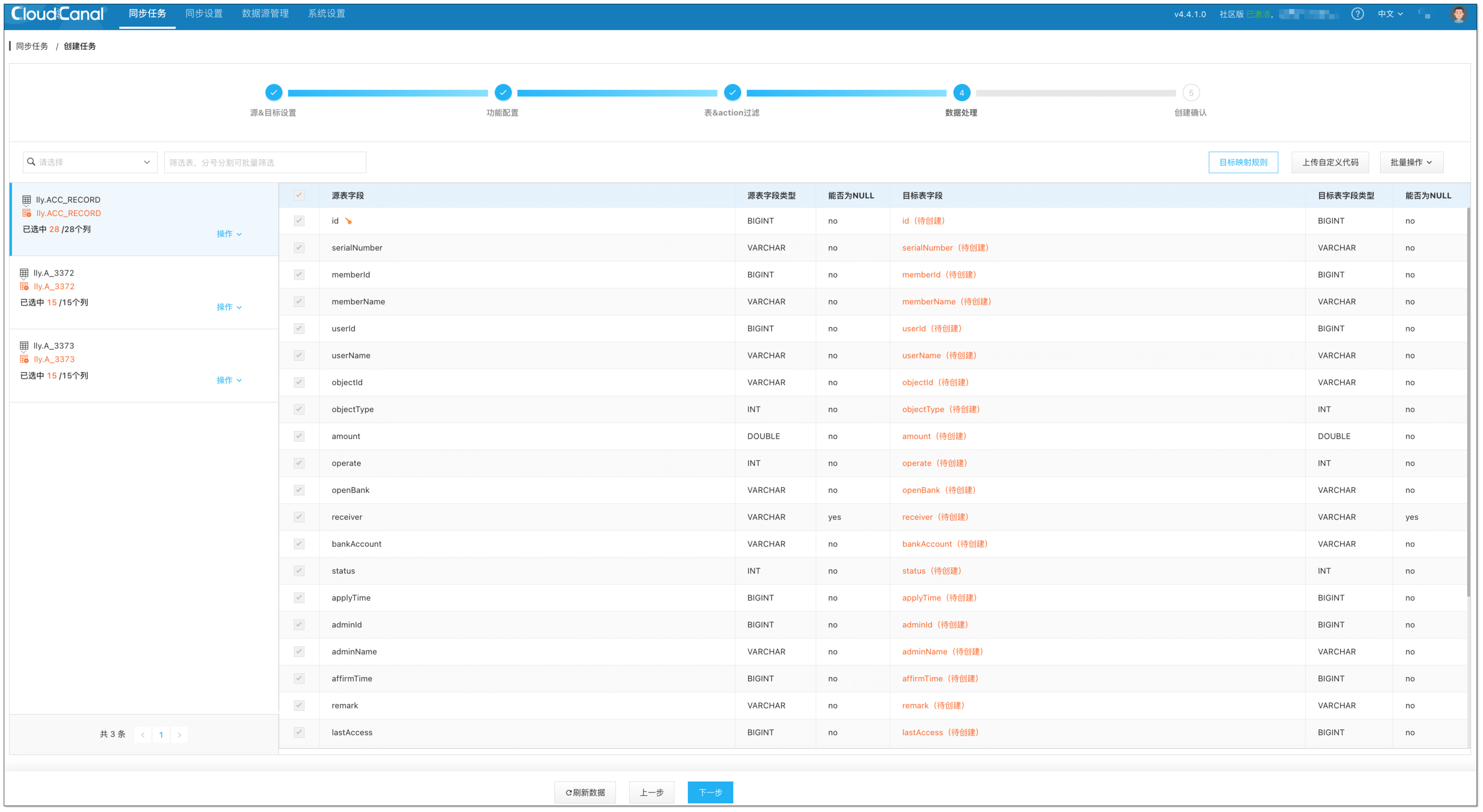
Select the columns to synchronize.
-
Confirm task creation.
-
The task runs automatically. CloudCanal automatically handles the task flow, which includes the following steps:
- Schema migration: The source-side table schema is migrated to the target. If a table with the same name already exists on the target, it is ignored.
- Full data migration: Existing data is fully migrated to the target, with support for resumable transfer.
- Incremental data synchronization: Incremental data is continuously synchronized to the target database in real time (with second-level latency).
