Smartbi
Smartbi is a suite of software services and application connectors that connects to a wide range of data sources such as Oracle, SQL Server, MySQL, and Apache Doris, and helps you integrate and clean data.
This document describes how to connect to an Apache Doris data source in Smartbi, and how to perform modeling, analysis, and visualization based on Doris data.
Applicable Scenarios
| Scenario | User Goal | Outcome |
|---|---|---|
| Connect to a Doris data source | Create a Doris data connection in Smartbi | Smartbi can access data in Doris |
| Build an analytical model | Create a relational model based on Doris data, write data analysis expressions, and build data relationships | Provides a foundation for advanced data analysis and visualization |
| Build visualization reports | Use Smartbi charts, geographic maps, interactive dashboards, and custom visualization tools to present data | Understand and present data more intuitively and comprehensively |
Smartbi Capabilities Overview
| Capability | Description |
|---|---|
| Data source connection | Supports connecting to a wide range of data sources such as Oracle, SQL Server, MySQL, and Apache Doris |
| Data modeling | Supports creating complex relational models, writing data analysis expressions, and building data relationships |
| Visual analysis | Provides charts, geographic maps, interactive dashboards, and custom visualization tools |
| Data presentation | Helps you understand and present data more intuitively and comprehensively, improving the effectiveness and efficiency of data analysis |
Prerequisites
Before you start, make sure you have the following information ready:
- You have access to a Smartbi login.
- You have the connection information for the Apache Doris database.
- You have decided on the report information that needs to be set up in the e-service dashboard.
Procedure
| Step | Goal | Description |
|---|---|---|
| Step 1 | Open the data connection page | Log in to Smartbi and open the data connection entry |
| Step 2 | Select the Doris database | Select Doris from the list of databases available for connection |
| Step 3 | Fill in the connection information | Enter the connection information for the Doris database |
| Step 4 | Test the connection | Confirm that the connection information is correct and complete the connection test |
| Step 5 | Configure the report | Go to the data analysis module and set up the report information in the e-service dashboard |
Step 1: Open the data connection page
After logging in to Smartbi, click Data Connection.
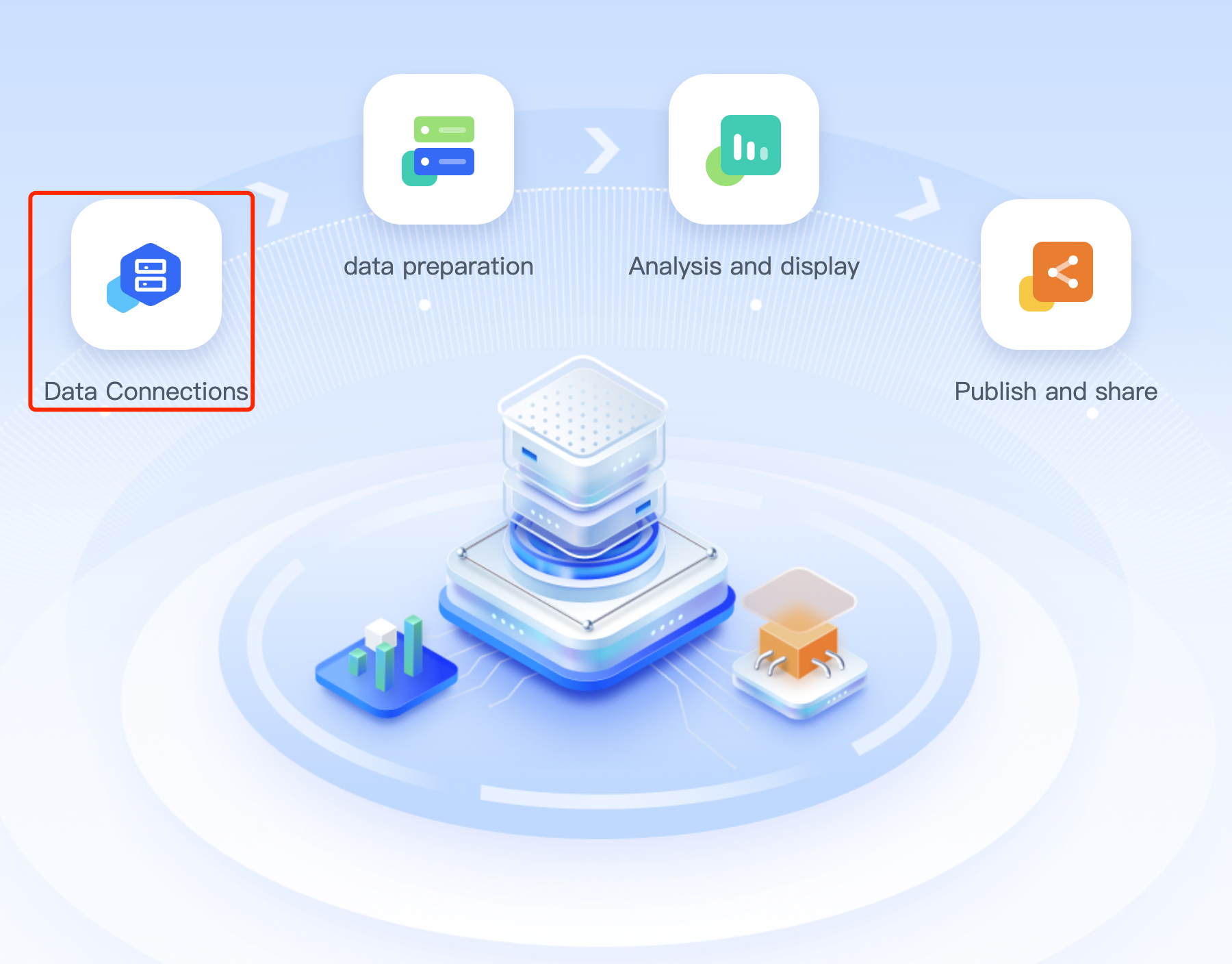
Step 2: Select the Doris database
On the data connection page, view the list of databases available for connection and select the Doris database.

Step 3: Fill in the Doris connection information
After selecting the Doris database, fill in the connection information for the Doris database.
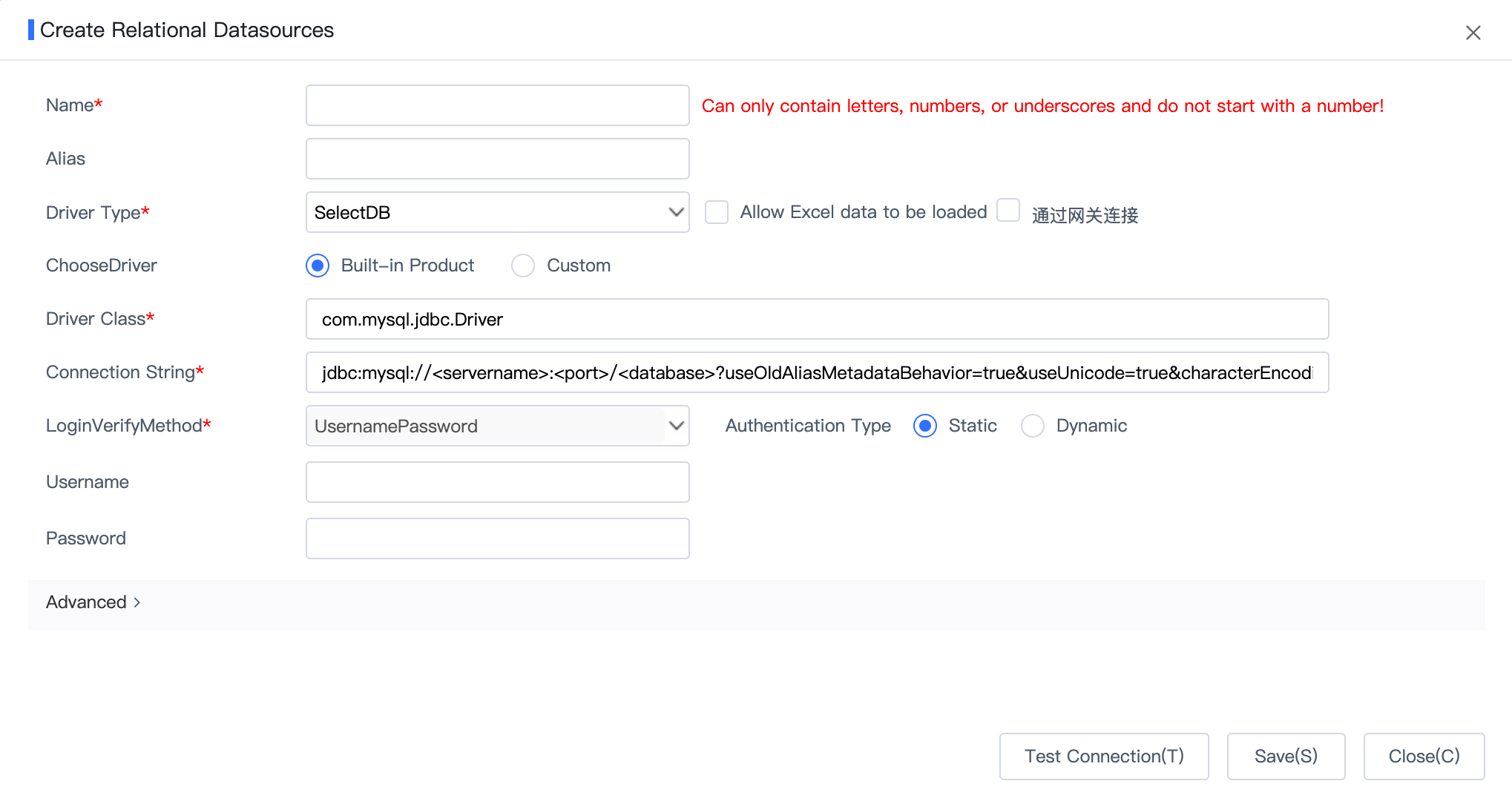
Step 4: Test the connection
If the connection information is correct and the connection succeeds, the page shows that the test passed.

Step 5: Configure the data analysis report
After the connection succeeds, go to the e-service dashboard in the data analysis module, and customize the report information as needed.
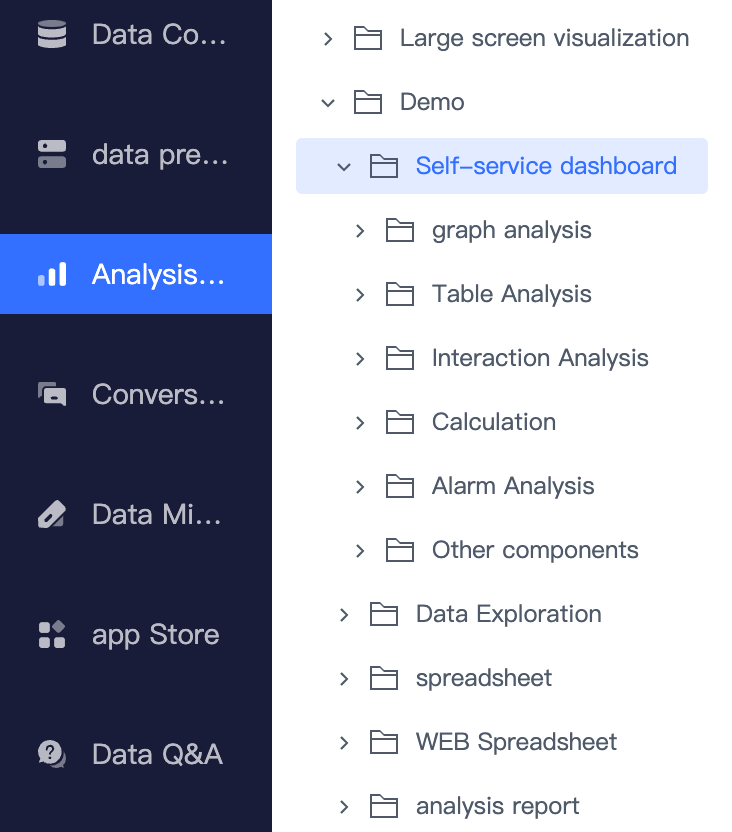
Result
After completing the configuration above, Smartbi can access Doris data through the Doris data connection that has been created, and configure the required reports based on the data analysis module.