DBeaver
DBeaver is a cross-platform database tool for developers, database administrators, analysts, and anyone who works with data.
Apache Doris accepts queries through the MySQL protocol. DBeaver 26.1.1 and later include an Apache Doris data source that you can use to query internal and external catalogs.
If the Select your database window does not list Apache Doris, use the MySQL driver instead. See Connect with the MySQL driver.
Use cases
- Browse Apache Doris catalogs, databases, tables, views, and other metadata.
- Run queries and analyze data in the SQL editor.
- Manage internal and external catalogs in one tool.
- Inspect sessions, system variables, user privileges, and other runtime information.
Prerequisites
- Install DBeaver 26.1.1 or later from https://dbeaver.com.
- You can reach the Apache Doris cluster and have the FE host address, MySQL protocol port, username, and password.
- Use Doris 2.1.0 or later to connect to an external catalog with the
catalog.dbformat.
Connect DBeaver to Doris
Connect with the Apache Doris driver (recommended)
DBeaver 26.1.1 or later is required.
Step 1: Create a database connection
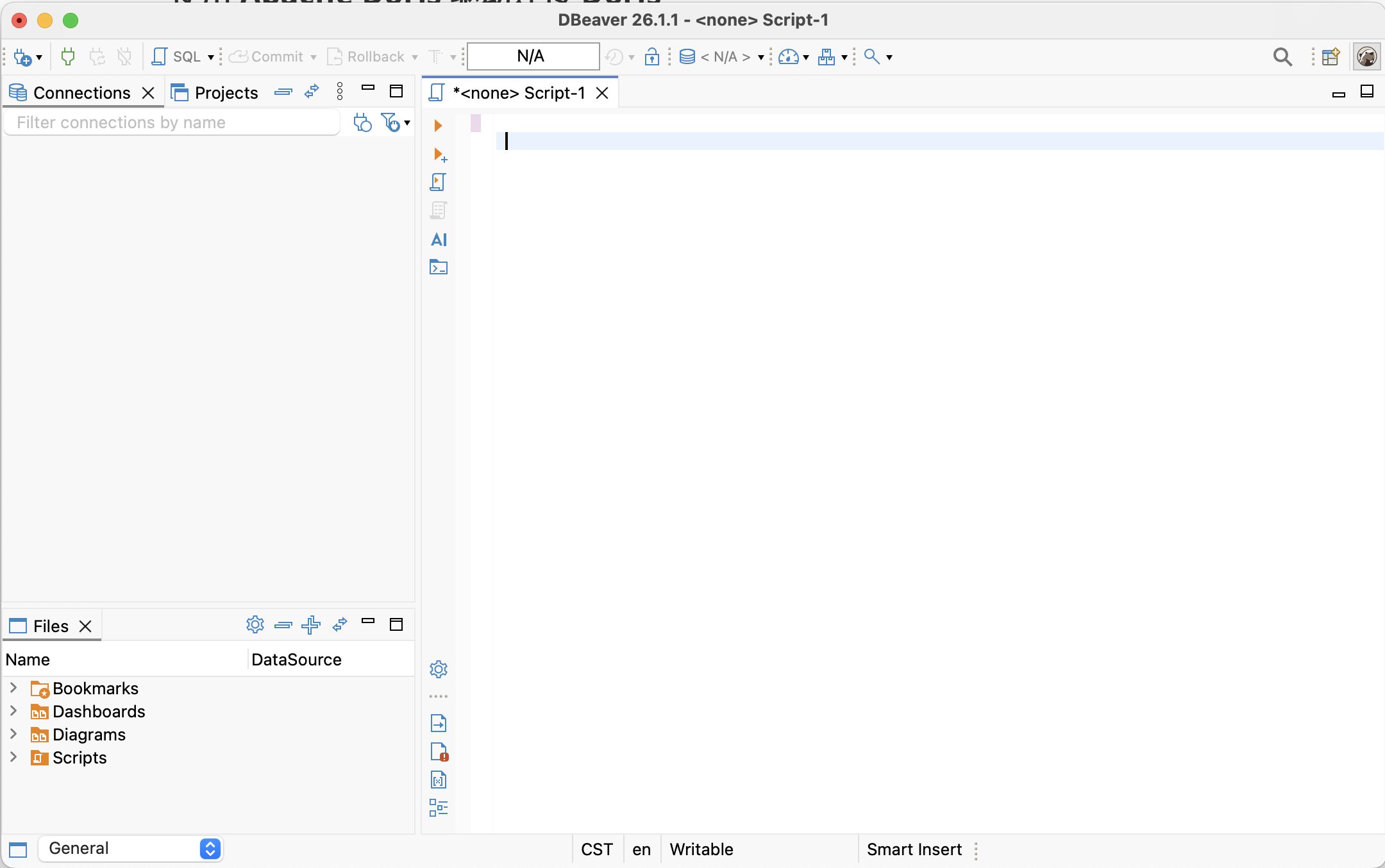
Start DBeaver.
Click the plus (+) icon in the upper-left corner, or select Database > New Database Connection from the menu bar. DBeaver opens the Connect to a database window.
Step 2: Select the Apache Doris driver
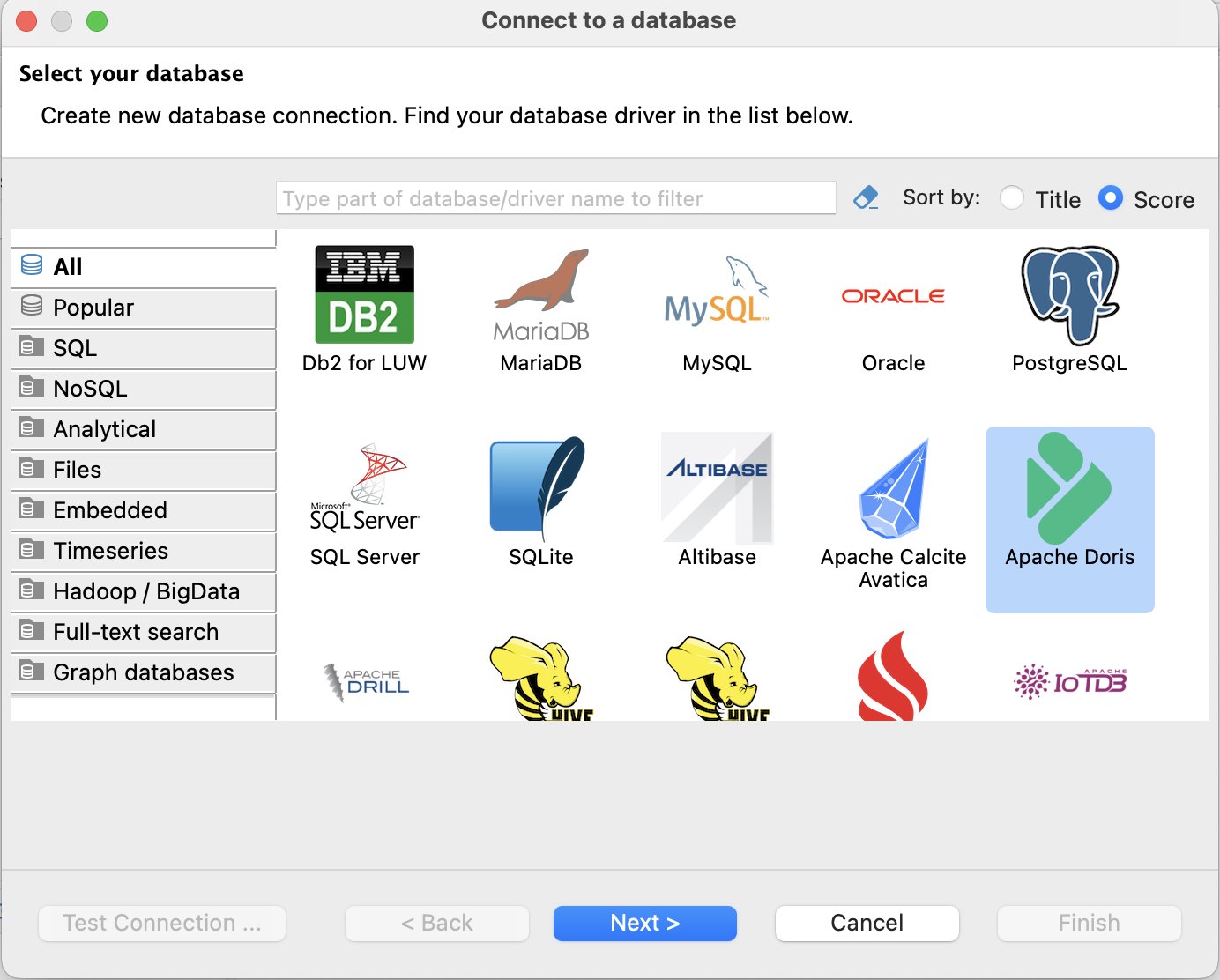
In the Select your database window, search for or select Apache Doris, then click Next.
Step 3: Configure the Doris connection
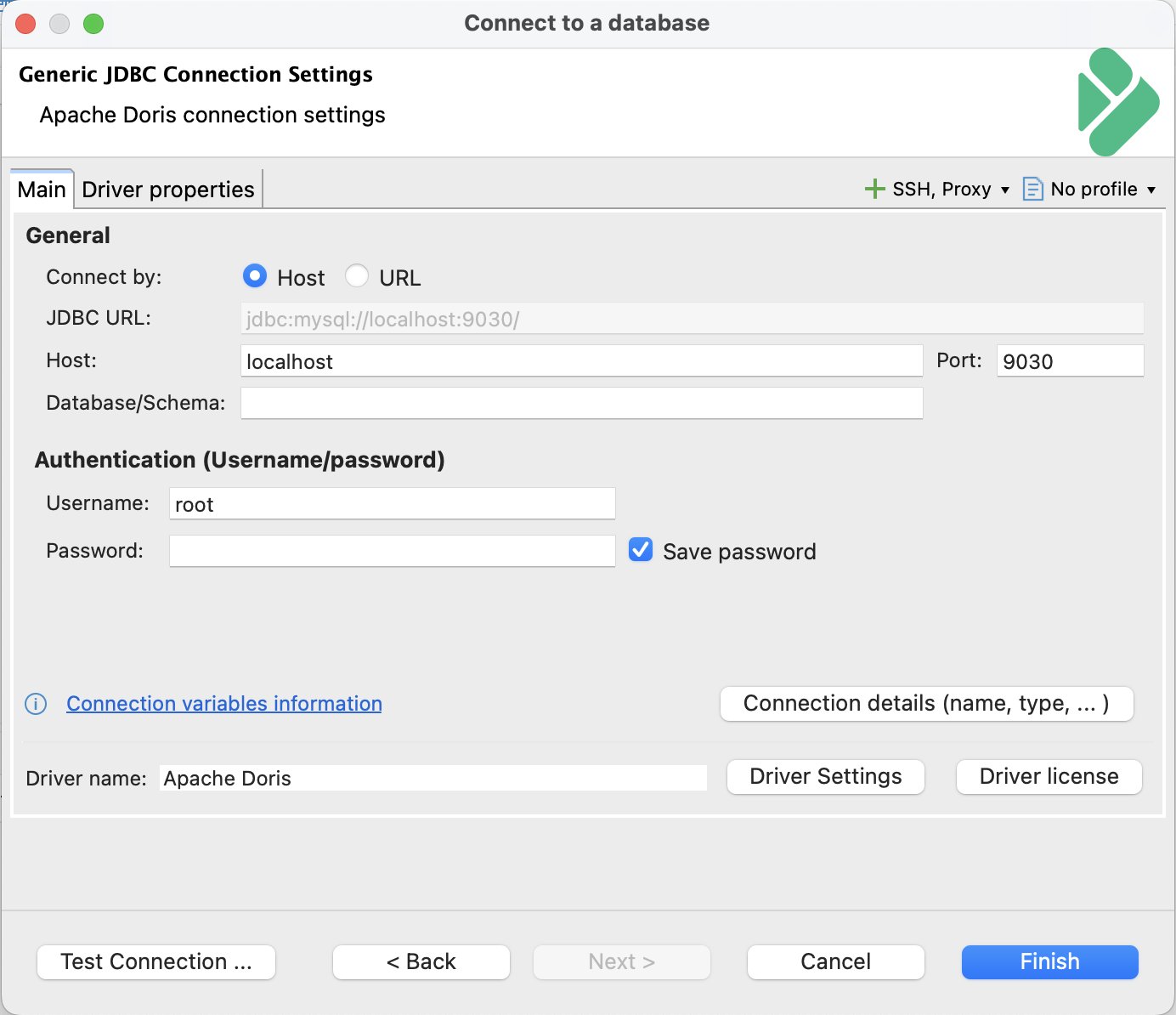
On the Main tab of the Apache Doris connection settings window, enter the following values:
| Field | Description | Example |
|---|---|---|
| Host | FE host name or IP address. If you use an SSH tunnel, enter the local forwarding address. | 127.0.0.1 |
| Port | FE MySQL protocol port. If you use an SSH tunnel, enter the local forwarding port. | 9030 or 19030 |
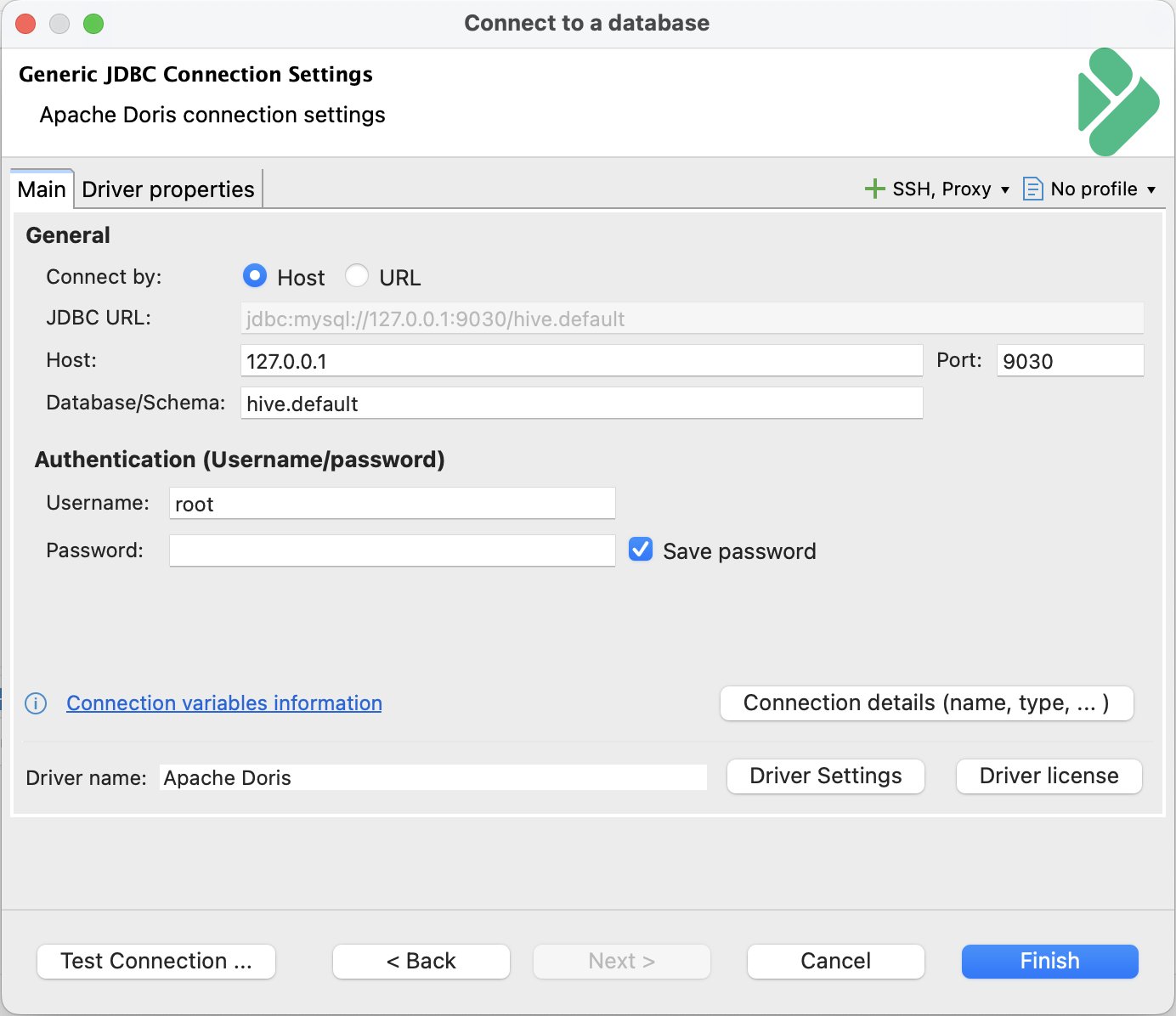
| Database/Schema | Optional. The target database. To connect directly to an external catalog, use the catalog.db format. | example_db or hive.example_db |
| Username | Username for the Doris cluster. | admin |
| Password | Password for the Doris cluster. | - |
The Database/Schema value determines which catalog and database DBeaver opens:
- Leave it blank to browse catalogs and databases in the Database Navigator after connecting.
- Enter a database name to open that database in the internal catalog.
- Enter
catalog.dbto open a database in the specified external catalog. DBeaver displays the tables from that catalog and database.
The catalog.db format requires Doris 2.1.0 or later.
Connect to the internal catalog:
Connect to an external catalog:
To use DBeaver's built-in SSH support, click SSH, Proxy in the upper-right corner and configure the tunnel. If you already created local port forwarding, enter the local address and port in Host and Port.
Step 4: Test and save the connection
Click Test Connection in the lower-left corner.
When DBeaver reports a successful connection, click OK.
Click Finish to save the connection.
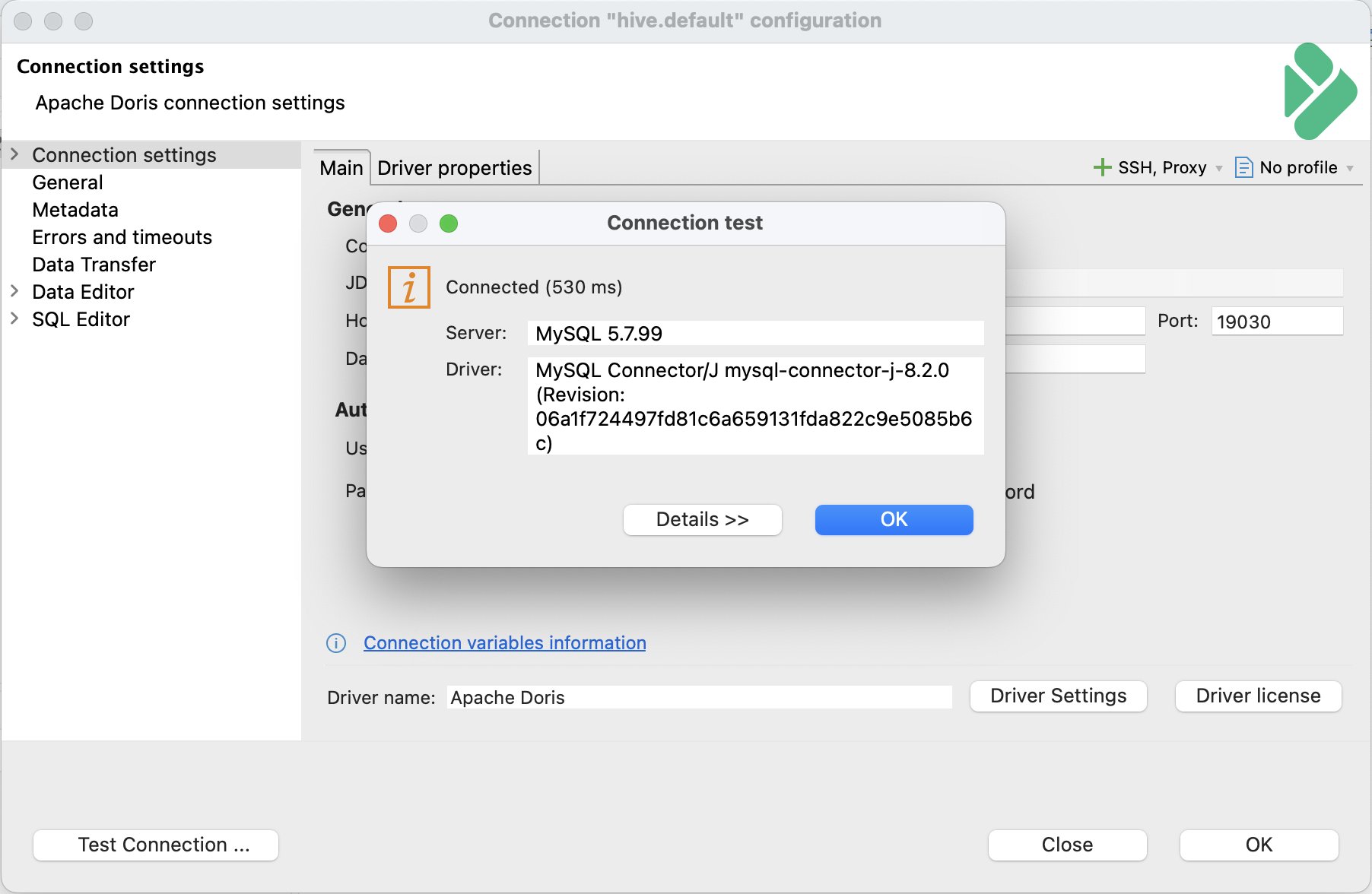
Step 5: Browse Doris objects
The new data source appears in the Database Navigator. Expand it to browse Doris catalogs, databases, tables, and views.
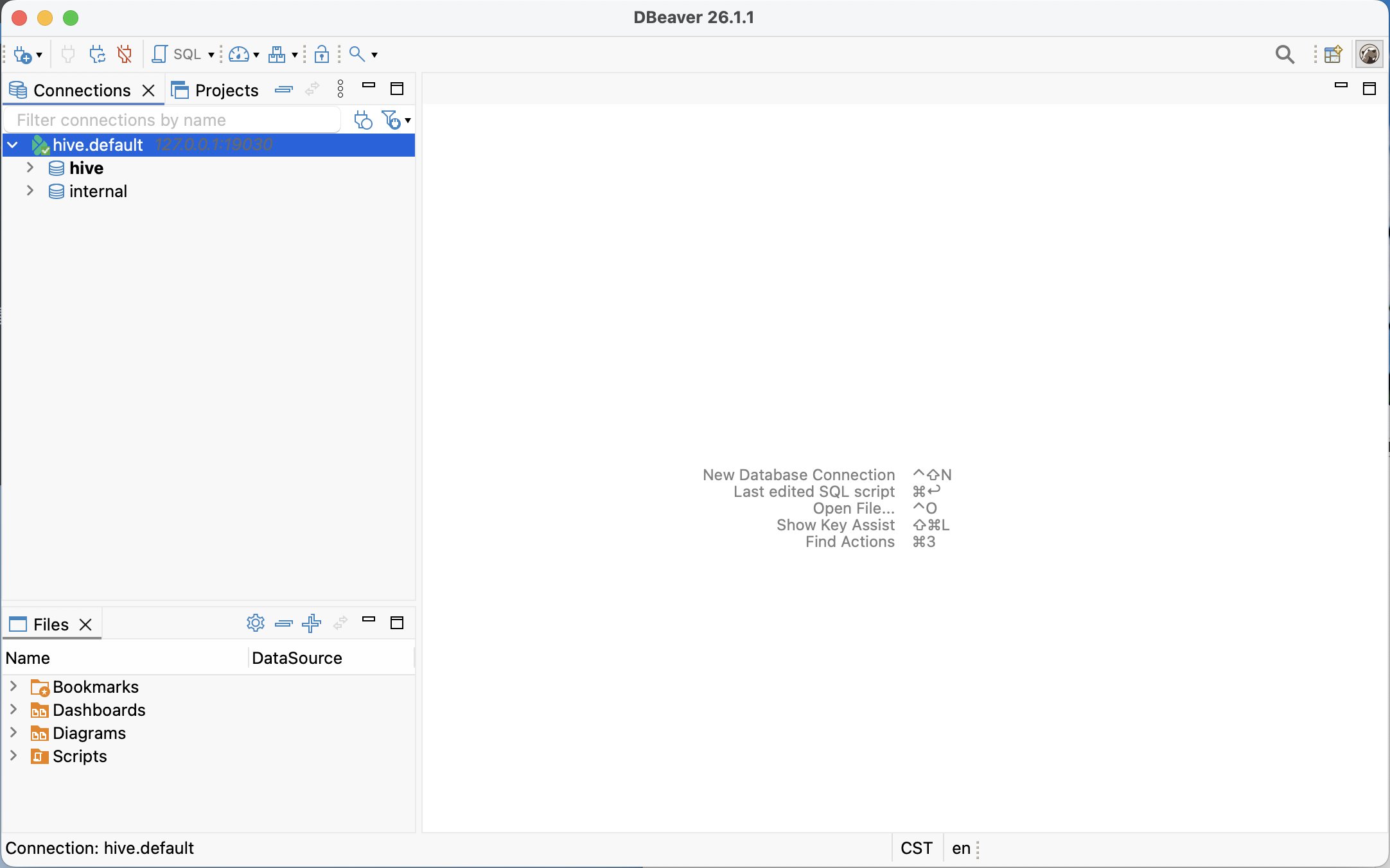
Configure driver properties
The Apache Doris driver uses MySQL Connector/J to connect to the FE MySQL protocol port. The default port is 9030, and the default user is root. The JDBC URL template is:
jdbc:mysql://{host}[:{port}]/[{database}]
The driver class is:
com.mysql.cj.jdbc.Driver
By default, the driver sets:
connectTimeout=20000
rewriteBatchedStatements=true
useSSL=false
enabledTLSProtocols=TLSv1.2,TLSv1.3
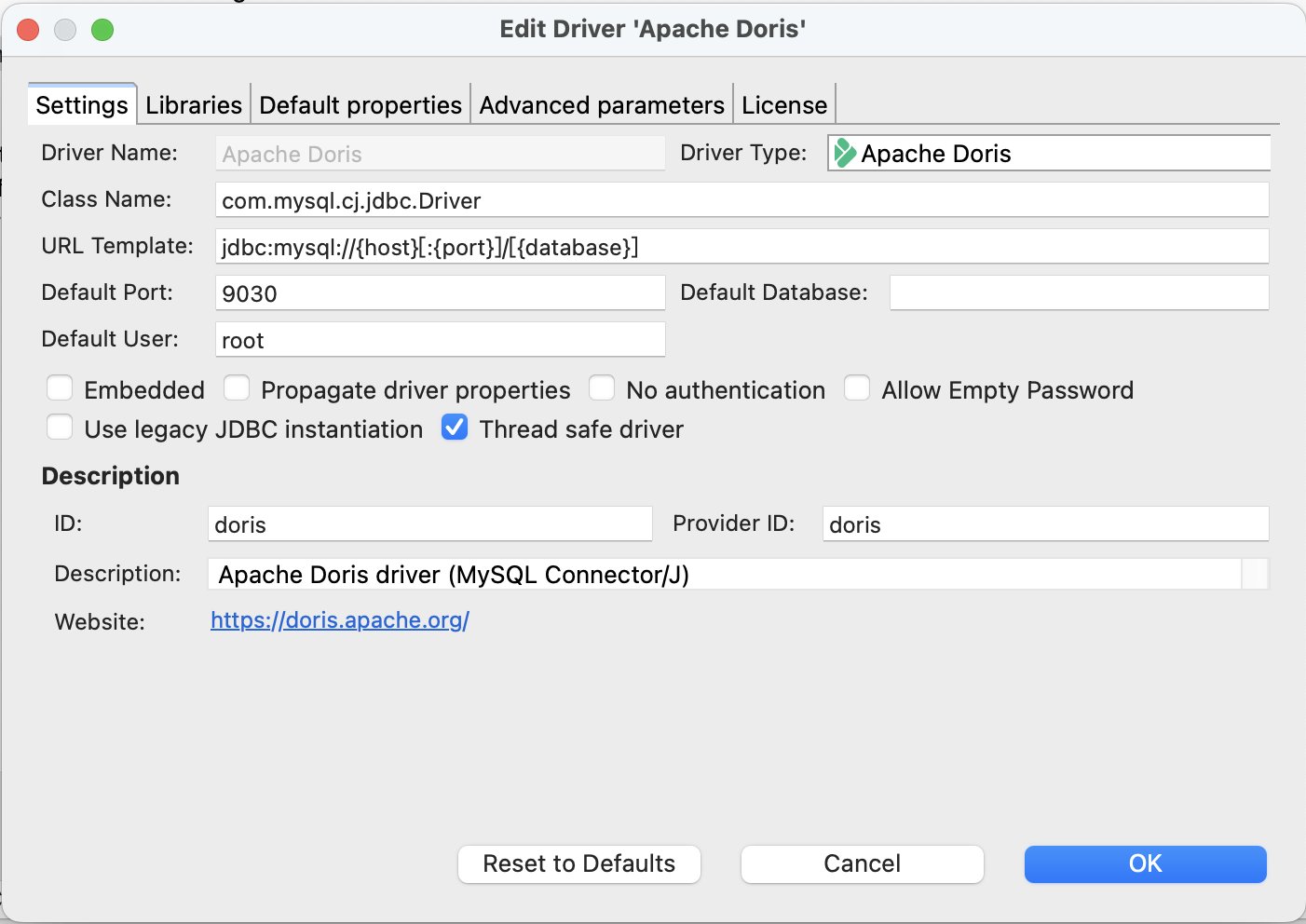
useSSL=false disables TLS/SSL by default. If the FE MySQL protocol port has TLS enabled and the certificate chain is configured correctly, set the MySQL Connector/J SSL properties under Driver properties. For example:
useSSL=true
sslMode=REQUIRED
To verify the certificate authority, configure a Java truststore:
sslMode=VERIFY_CA
trustCertificateKeyStoreUrl=file:/path/to/doris-truststore.jks
trustCertificateKeyStorePassword=<password>
To also verify the server host name, use:
sslMode=VERIFY_IDENTITY
With VERIFY_IDENTITY, the Host value in DBeaver must match the certificate's SAN or CN.
Connect with the MySQL driver
If the Select your database window does not list Apache Doris, connect with the MySQL driver.
Step 1: Create a database connection
Start DBeaver.
Click the plus (+) icon in the upper-left corner, or select Database > New Database Connection from the menu bar. DBeaver opens the Connect to a database window.
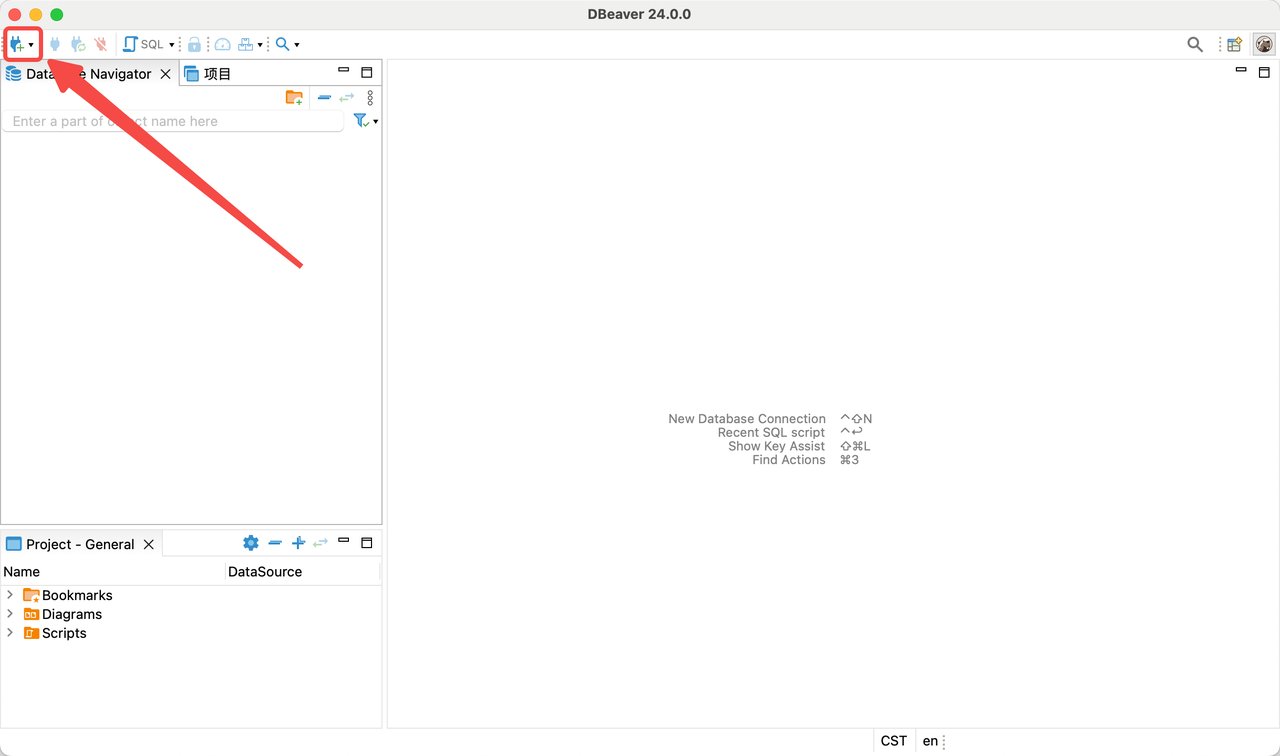
Step 2: Select the MySQL driver
In the Select your database window, select MySQL.
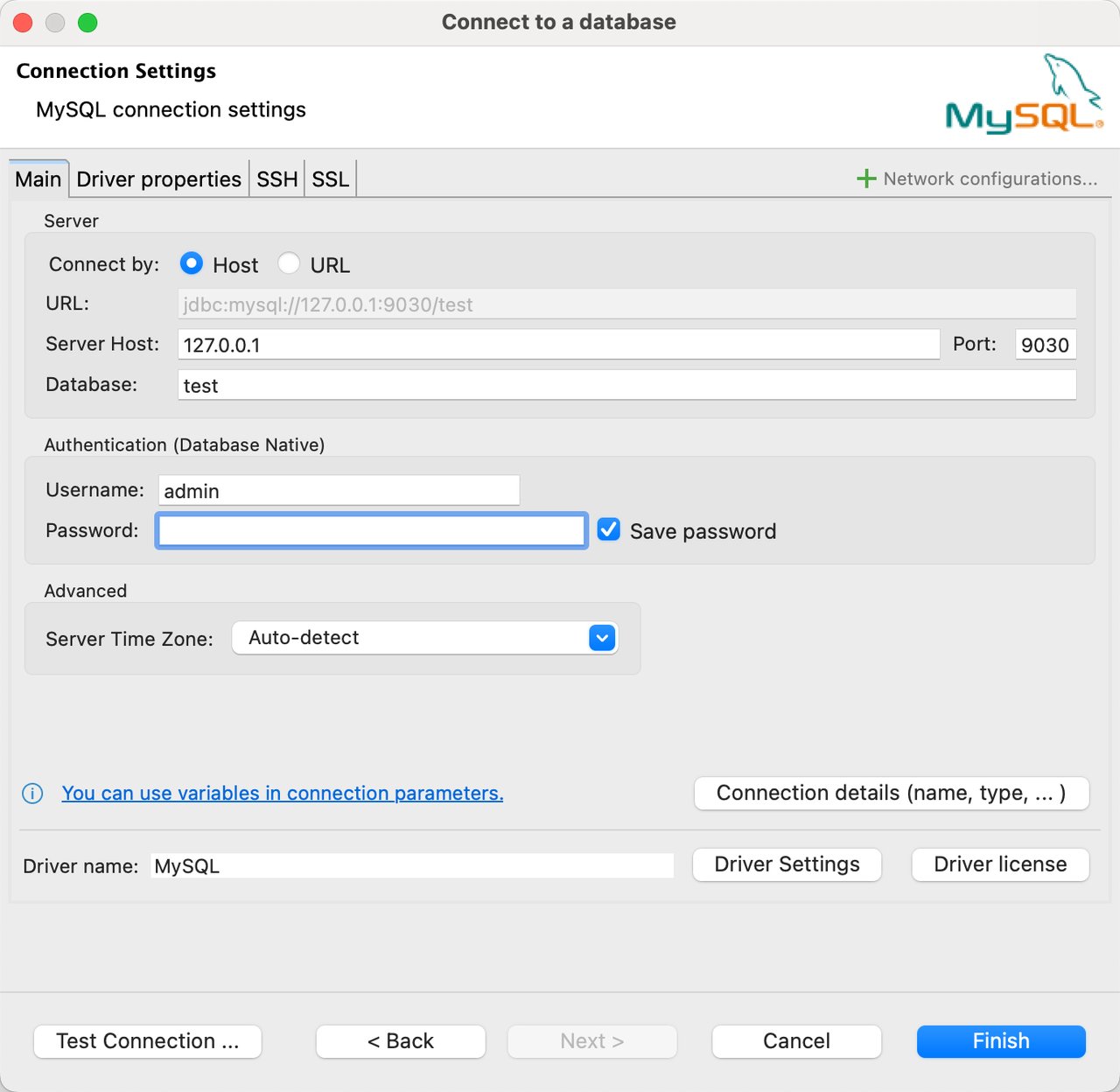
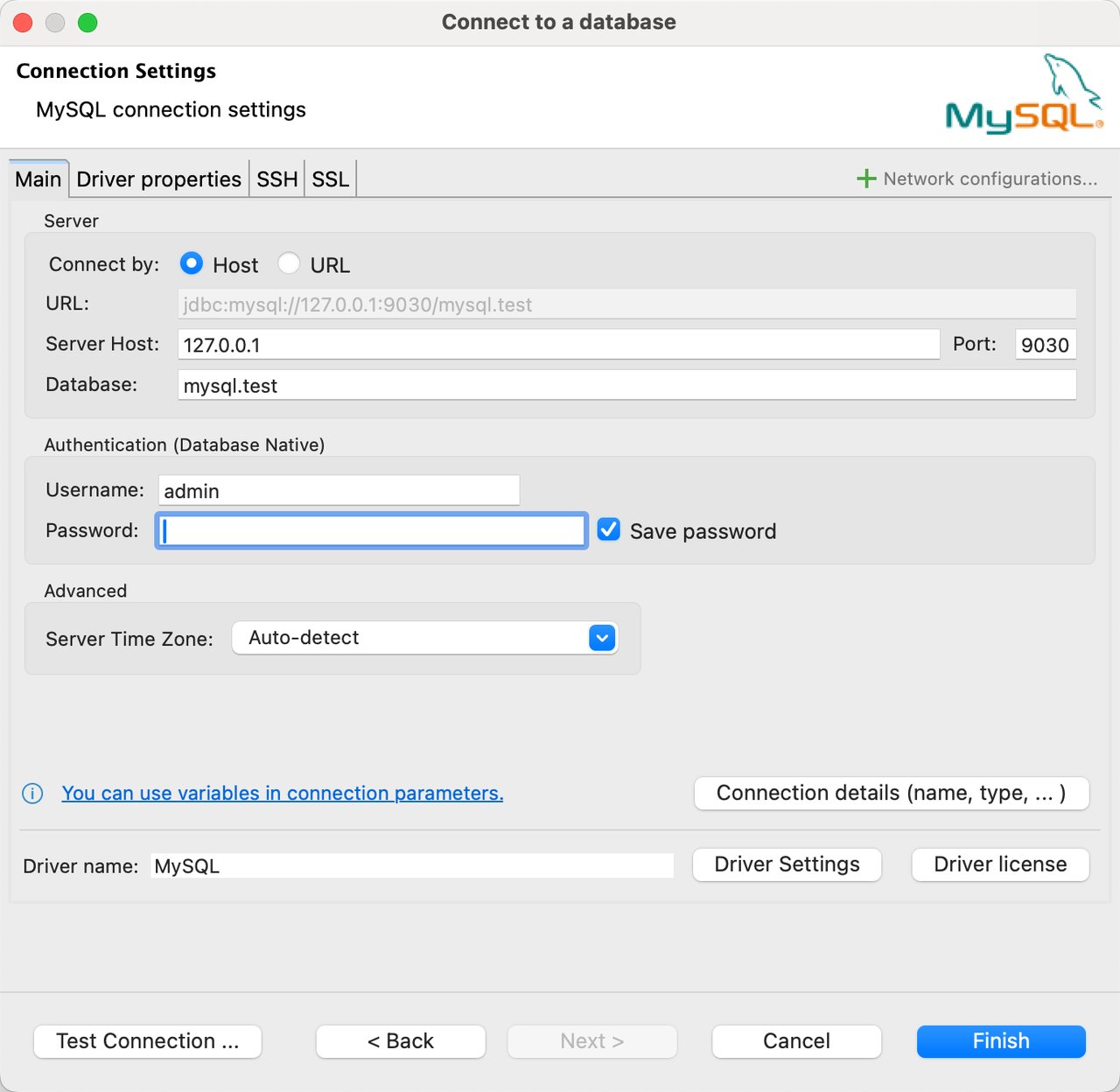
Step 3: Configure the Doris connection
On the Main tab of the Connection Settings window, enter the following values:
| Field | Description | Example |
|---|---|---|
| Server Host | FE host name or IP address. | 127.0.0.1 |
| Port | FE MySQL protocol port. | 9030 |
| Database | Target database. To connect directly to an external catalog, use the catalog.db format. | example_db or hive.example_db |
| Username | Username for the Doris cluster. | admin |
| Password | Password for the Doris cluster. | - |
The Database value determines the default catalog:
- Enter a database name to open that database in the internal catalog.
- Enter
catalog.dbto open a database in the specified external catalog. DBeaver displays the tables from that catalog and database.
Create separate Doris data sources if you need direct access to several catalogs.
The catalog.db format requires Doris 2.1.0 or later.
Connect to the internal catalog:
Connect to an external catalog:
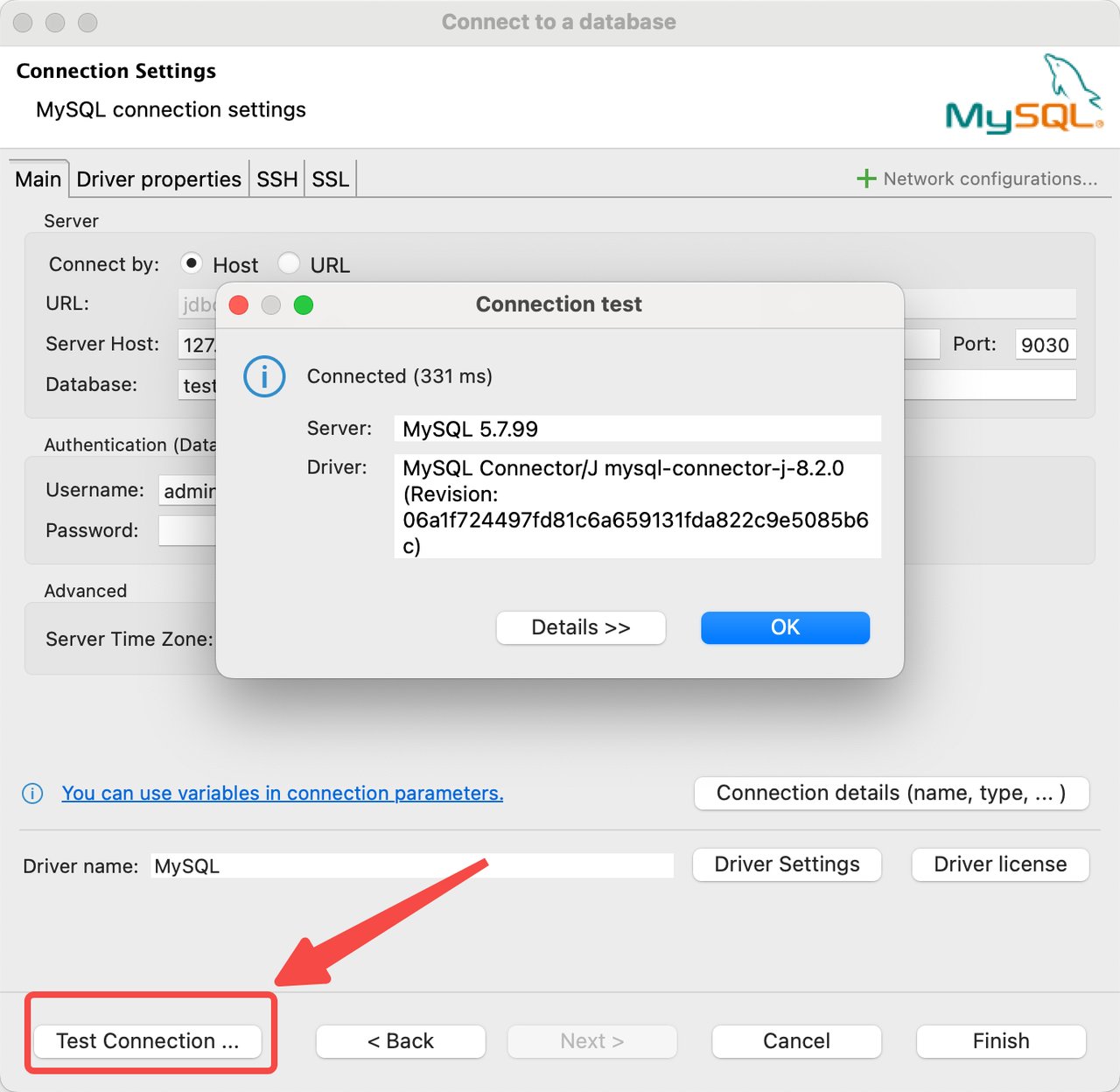
Step 4: Test and save the connection
Click Test Connection in the lower-left corner.
When DBeaver reports a successful connection, click OK.
Click Finish to save the connection.
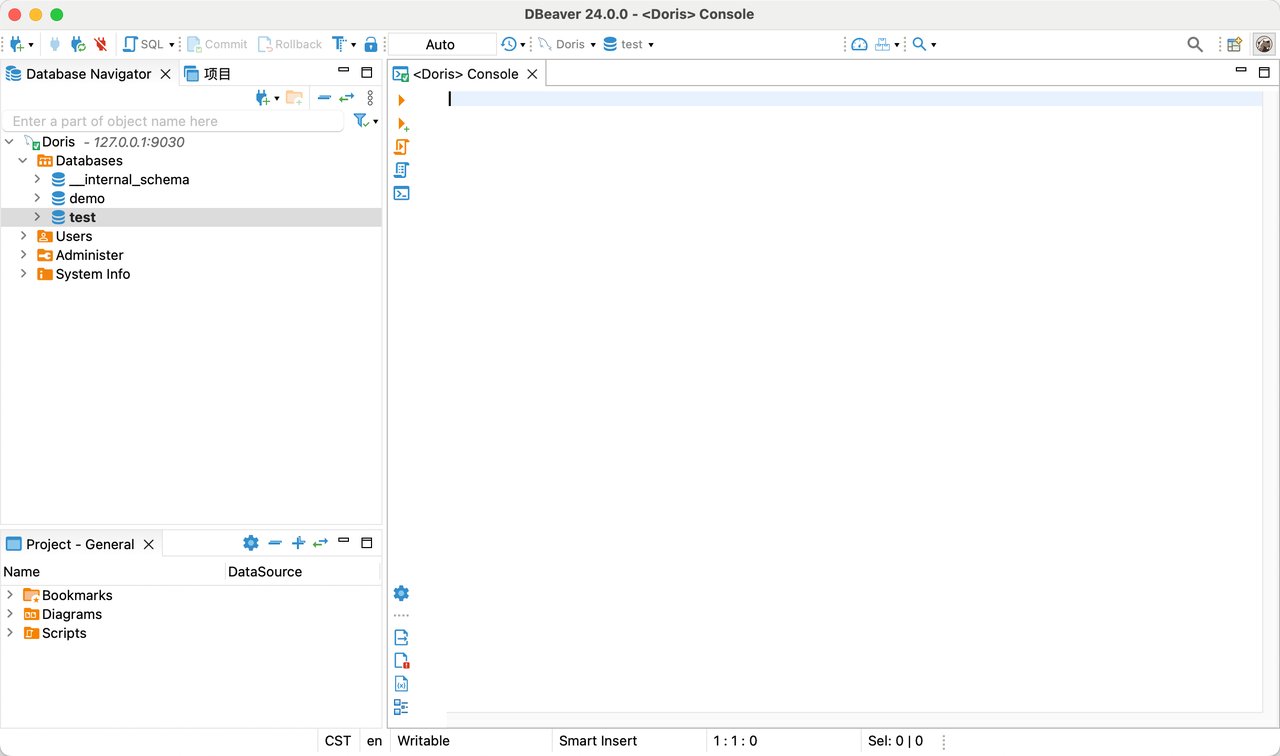
Step 5: Manage the database
The new data source appears in the Database Navigator. Use it to connect to and manage the database.
Driver selection and feature support
Choose a driver
Both the Apache Doris driver and the MySQL driver connect to Doris through the FE MySQL protocol port. They differ mainly in how DBeaver models metadata, organizes objects in the navigator, and exposes administration features.
Use the following guidelines to select a driver:
| Use case | Recommended driver |
|---|---|
| Connect to Doris, run SQL, and browse databases and tables | Apache Doris driver |
| Browse the internal catalog and multiple external catalogs in one connection | Apache Doris driver |
| The current DBeaver version does not provide an Apache Doris data source | MySQL driver |
| View Users, Session Manager, and System Info | MySQL driver |
If you only work with the internal catalog, either driver can connect to Doris and execute SQL. However, the Apache Doris driver is recommended.
Feature comparison
| Feature | Apache Doris driver | MySQL driver |
|---|---|---|
| Connect to Doris and execute SQL | Supported | Supported |
| Browse the internal catalog | Supported | Supported |
| Browse multiple catalogs in one connection | Supported | Not supported |
| Browse external catalogs in Database Navigator | Supported | Not supported |
Use catalog.db as the default SQL context | Supported | Supported |
| View tables, views, columns, and DDL | Supported | Supported |
| SQL editor and SQL console | Supported | Supported |
| View data through the UI | Supported | Supported |
| Insert data through the UI | Supported | Supported |
| View Users, Session Manager, and System Info | Not supported | Supported |
| Tools > Analyse | Not supported | Supported |
| Tools > Truncate | Not supported | Supported |
This table defines supported capabilities using an allowlist:
- Only features explicitly marked as "Supported" in the table are within the scope of this document.
- DBeaver UI operations and administration features not listed in the table are not supported.
- When you use the MySQL driver, the presence of a MySQL feature in the DBeaver interface does not mean that Doris supports it.
- Users, Session Manager, and System Info are read-only. You cannot use DBeaver to modify users, privileges, or sessions.
- Support for
AnalyseandTruncateapplies only to the DBeaver Tools menu when you use the MySQL driver. With the Apache Doris driver, run the corresponding Doris SQL statements in the SQL editor.
Important limitations
Neither driver supports the following operations:
- Update or delete existing data through the UI.
- Create tables through the UI.
- Add or modify columns through the UI.
- Create or modify indexes through the UI.
- Create foreign keys or triggers through the UI.
- Configure key models, partitions, buckets, replica counts, or table properties through the UI.
- Session Status, Global Status, or Dashboard.
- Check, Optimize, Repair, or Dump database.
Use the SQL editor to change Doris table schemas and to update or delete existing data.