Metabase
Metabase is an open source business intelligence tool that provides data analysis, data visualization, interactive dashboards, data drill-down, SQL query editing, and data export. With the Metabase Apache Doris Driver, Metabase can integrate Apache Doris databases and tables as data sources to query Doris internal data and external data, and to build visualization dashboards.
The driver is a standalone Metabase community driver and is not built into Metabase.
This article starts from user scenarios and describes how to complete the following operations:
| Scenario | User goal | Main operations |
|---|---|---|
| Prepare the Metabase environment | Allow Metabase to recognize Apache Doris as a data source | Install Metabase, then download and install the Doris driver |
| Configure the Doris data source | Connect to the Doris tpch database in Metabase | Fill in the FE node, Query Port, Catalog, database, username, and password |
| Build visualization analytics | Analyze how order amounts of different shipping methods change over time | Create a Question, write SQL, configure a line chart, and save it to a dashboard |
| Use advanced capabilities | Access external data sources and improve the query experience | Use Catalog, parameterized queries, partition pruning, materialized views, and caching |
Prepare the Metabase environment
Prerequisites
Before you start configuration, make sure the following environment is ready:
| Item | Requirement |
|---|---|
| Metabase | Download and install Metabase 0.59.6.3 or later. For installation instructions, see the Metabase installation documentation |
| Java | Java 21 is required to run Metabase |
| Apache Doris | Prepare an accessible Apache Doris cluster |
| Doris driver | Download the Metabase Doris Driver |
Download and verify the driver
The Metabase Doris Driver is provided and maintained by a third party. It is not part of the Apache Doris project and is not released or endorsed by the Apache Doris community. Evaluate the driver yourself before using it in production, verify the checksum of the file you download, and follow the license of the third-party project. Report driver issues to the project that provides it.
Download the Release JAR and its checksum file:
curl -LO https://github.com/velodb/metabase-doris-driver/releases/download/v1.0.0/doris.metabase-driver-v1.0.0.jar
curl -LO https://github.com/velodb/metabase-doris-driver/releases/download/v1.0.0/doris.metabase-driver-v1.0.0.jar.sha256
sha256sum -c doris.metabase-driver-v1.0.0.jar.sha256
The expected SHA-256 digest is as follows:
b23e82f19a7f9226343e42566e1e192b6df7a0dfc48a73d2101fc74bfec243f3
Install the driver for a regular deployment
If Metabase is deployed in the regular way, install the Doris driver as follows:
-
Download and verify the driver Release files as described above.
-
If the Metabase plugins directory does not exist, create it:
mkdir -p /path/to/metabase/plugins -
Copy the Release JAR to the plugins directory:
cp doris.metabase-driver-v1.0.0.jar /path/to/metabase/plugins/doris.metabase-driver.jar -
Restart the Metabase service.
-
Check the Metabase startup log to confirm that the
dorisdriver is registered. In Admin Settings > Databases > Add database, you should be able to see the Apache Doris database type.
Install the driver for a Docker deployment
If you start Metabase with Docker, you are recommended to start it by mounting doris.metabase-driver.jar. The plugin path inside the Docker container is /plugins/.
-
Download and verify the driver Release files.
-
Start the container with a Metabase image that meets the prerequisites:
docker run -d \
  -p 3000:3000 \
  --name metabase \
  -v "$(pwd)/doris.metabase-driver-v1.0.0.jar:/plugins/doris.metabase-driver.jar:ro" \
  metabase/metabase
Configure the Doris data source
After installing Metabase and metabase-doris-driver, you can add a data source in Metabase that connects to the Doris tpch database.
Connection parameters
The following fields are required when connecting to Apache Doris:
| Parameter | Meaning | Example |
|---|---|---|
| Display Name | Display name of the data source | Doris-TPCH |
| Host | Doris FE node address | 127.0.0.1 |
| Port | Doris Query Port (MySQL protocol port), defaults to 9030 | 9030 |
| Catalog | Catalog name. Optional, defaults to internal | internal |
| Database (optional) | The database in the selected Catalog. Optional; when left empty, all visible databases in the Catalog are discovered | tpch |
| Username | Username | root |
| Password | Password | your_password |
| SSL | Enable JDBC TLS. The driver uses MariaDB sslMode=trust and does not verify the server certificate or hostname | false |
| Sync Schemas Include | Optional. Used when Database (optional) is empty. A comma-separated allowlist of databases | tpch |
| Sync Schemas Exclude | Optional. Used when Database (optional) is empty. A comma-separated denylist of databases. The exclude rule takes precedence over the include rule | information_schema |
| Additional JDBC connection string options | Other MariaDB JDBC URL parameters | connectTimeout=10000 |
Select the Catalog and database scope as follows:
- Internal tables: Keep Catalog as
internaland fill in a database such astpch. - External tables: Fill in the external Catalog and a database visible in that Catalog.
- Multiple databases: Leave Database (optional) empty. The driver discovers the databases visible to the configured account, and applies the include and exclude lists before listing the tables in them.
When Database (optional) is empty, the driver excludes information_schema, __internal_schema, and mysql by default. The include and exclude rules are matched case-insensitively; if the same database appears in both lists, the exclude rule takes precedence. If Database (optional) is set explicitly, the sync scope is limited to that database, and the include and exclude settings do not change the sync scope.
Configuration steps
-
Start Metabase and complete the login.
-
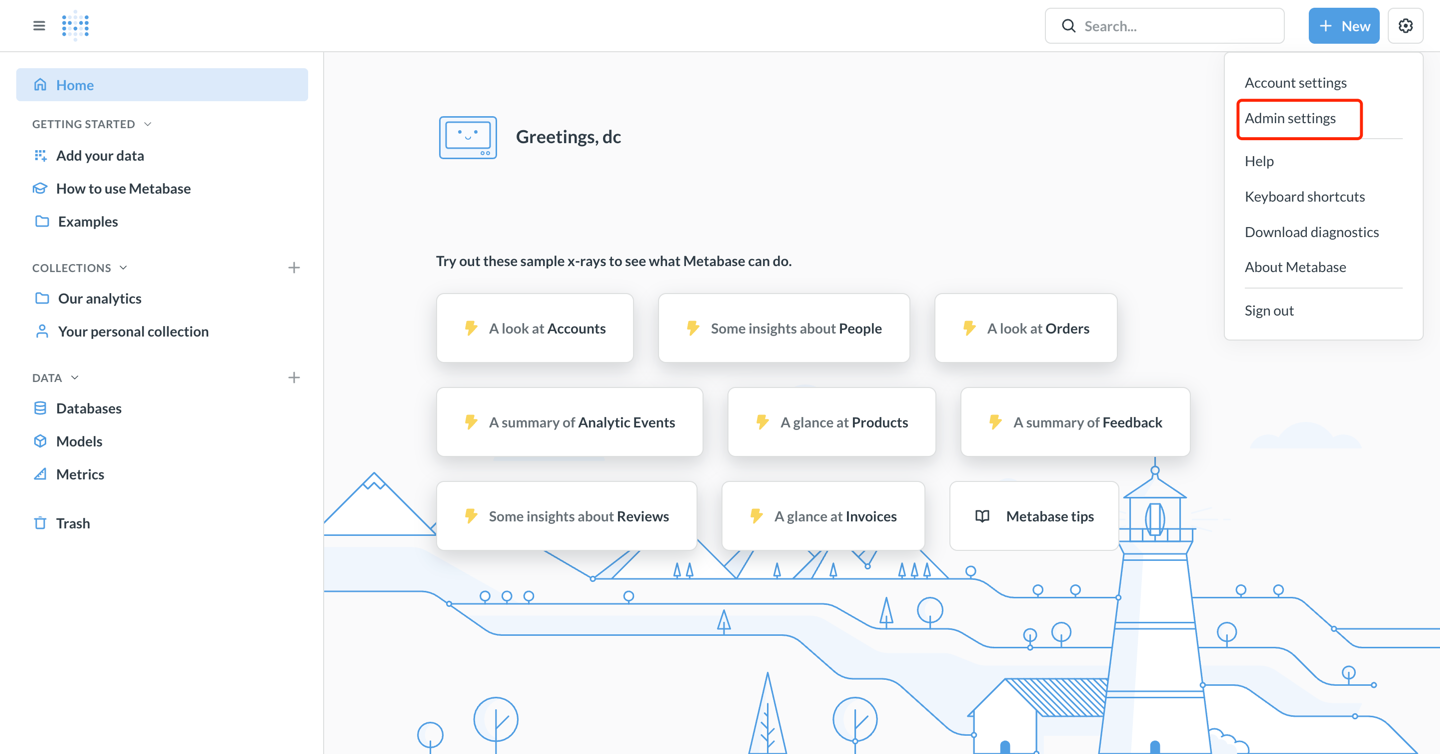
Click the gear icon in the upper right corner and select Admin Settings.
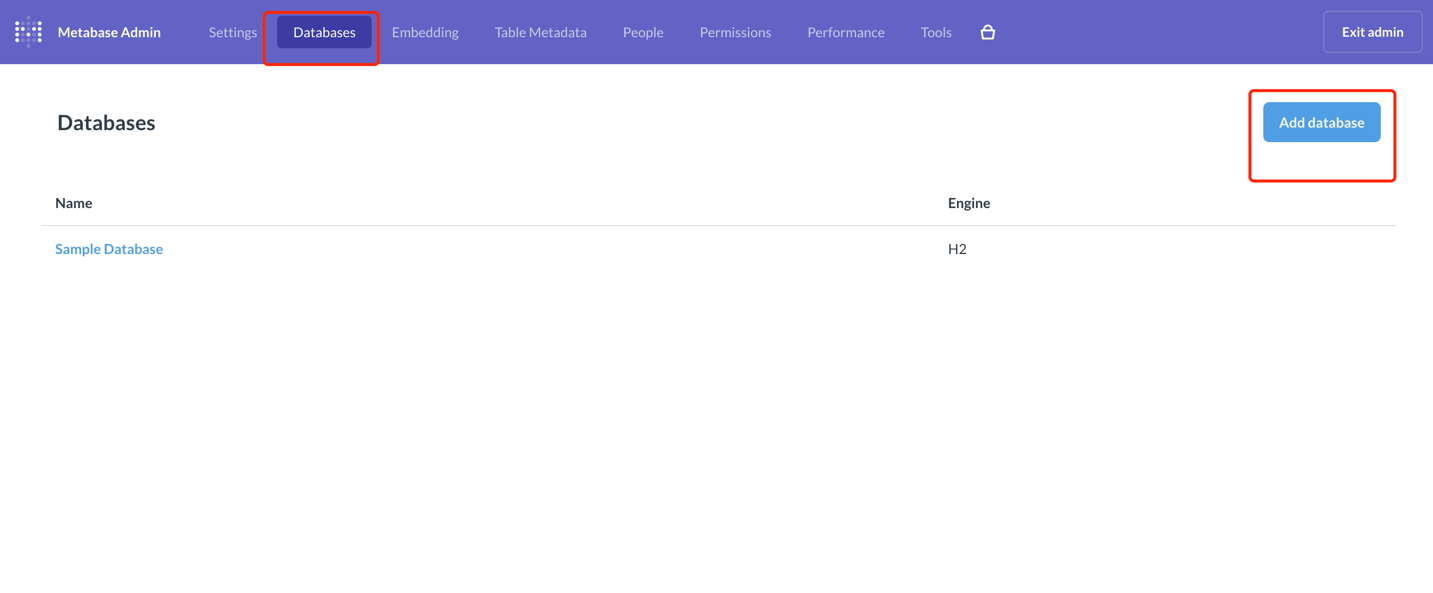
- In the left menu, select Databases, and click the Add database button in the upper right corner.
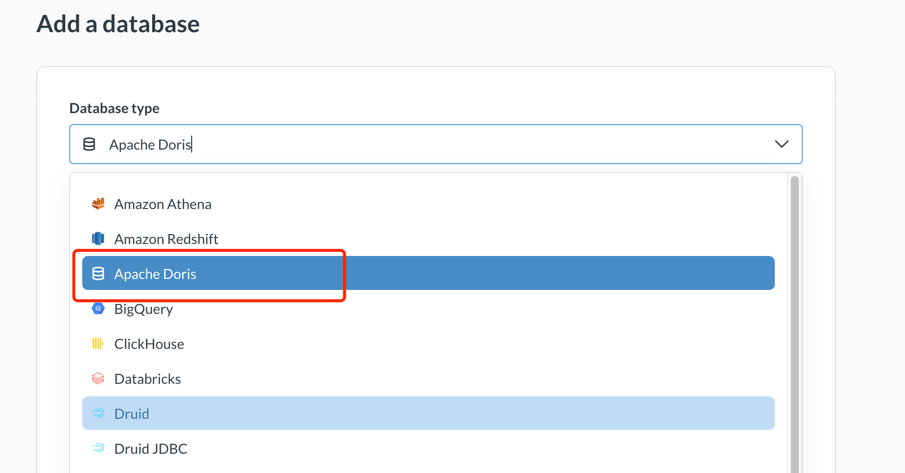
- In the Database type dropdown, select Apache Doris.
-
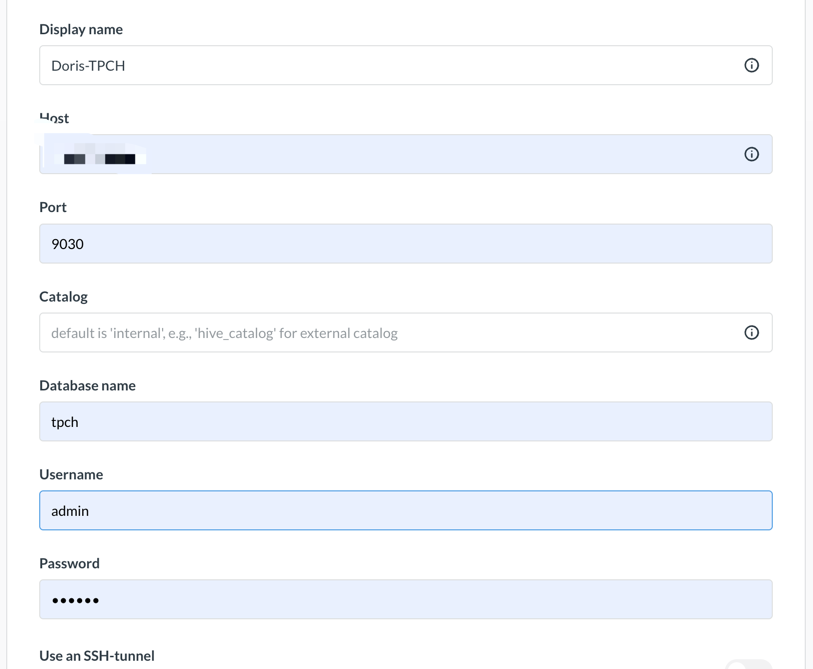
Fill in the connection information:
Parameter Example value Display name Doris-TPCH Host 127.0.0.1 Port 9030 Catalog internal Database (optional) tpch Username admin Password ******
-
Click Save to save the configuration.
-
Metabase tests the connection and starts synchronizing database metadata. If the connection succeeds, a success message is displayed.
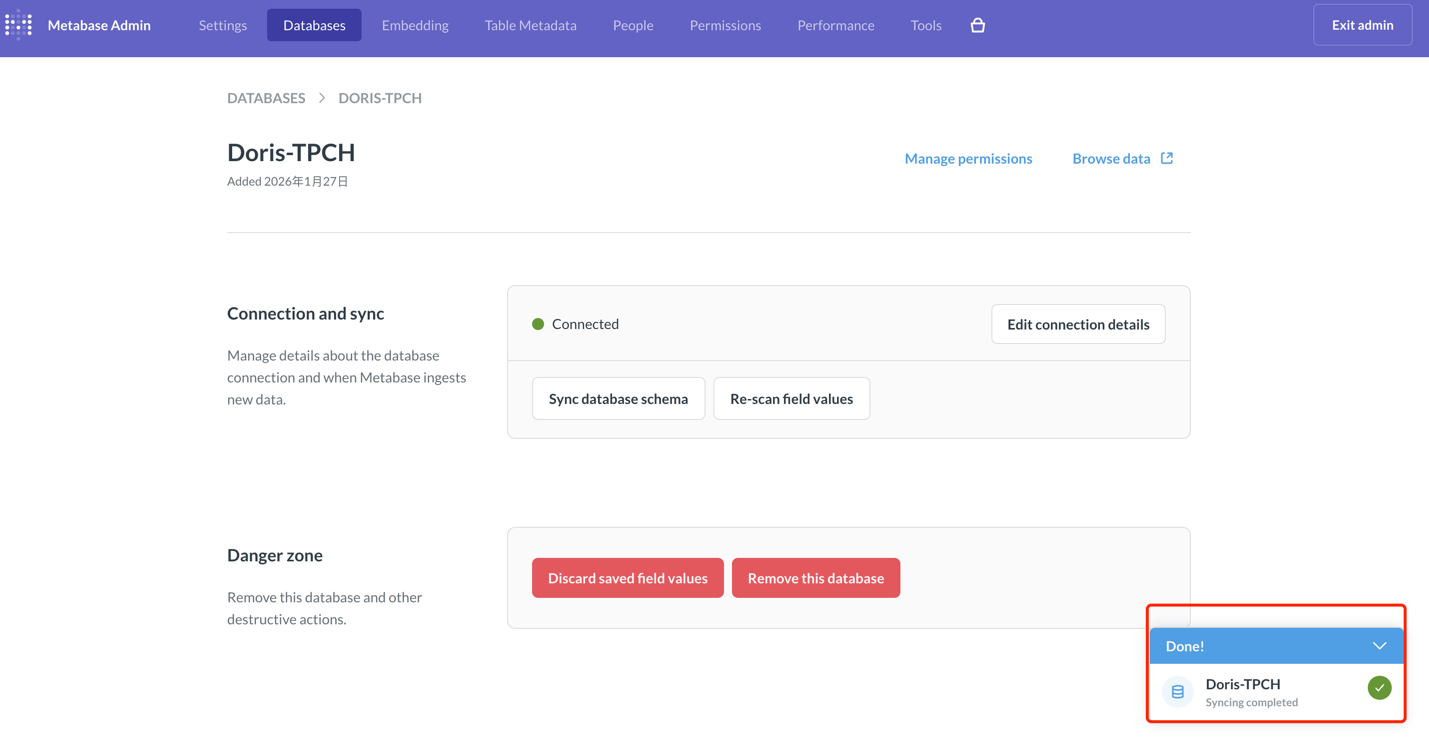
After the data source configuration is complete, you can build visualizations in Metabase.
Build a visualization dashboard
This example uses TPC-H data as the data source. For how to build the Doris TPC-H data source, see the Doris TPC-H benchmark documentation.
Suppose you need to analyze how the order amounts of different shipping methods grow over time for cost analysis. You can complete the visualization configuration with the following workflow.
Create a Question
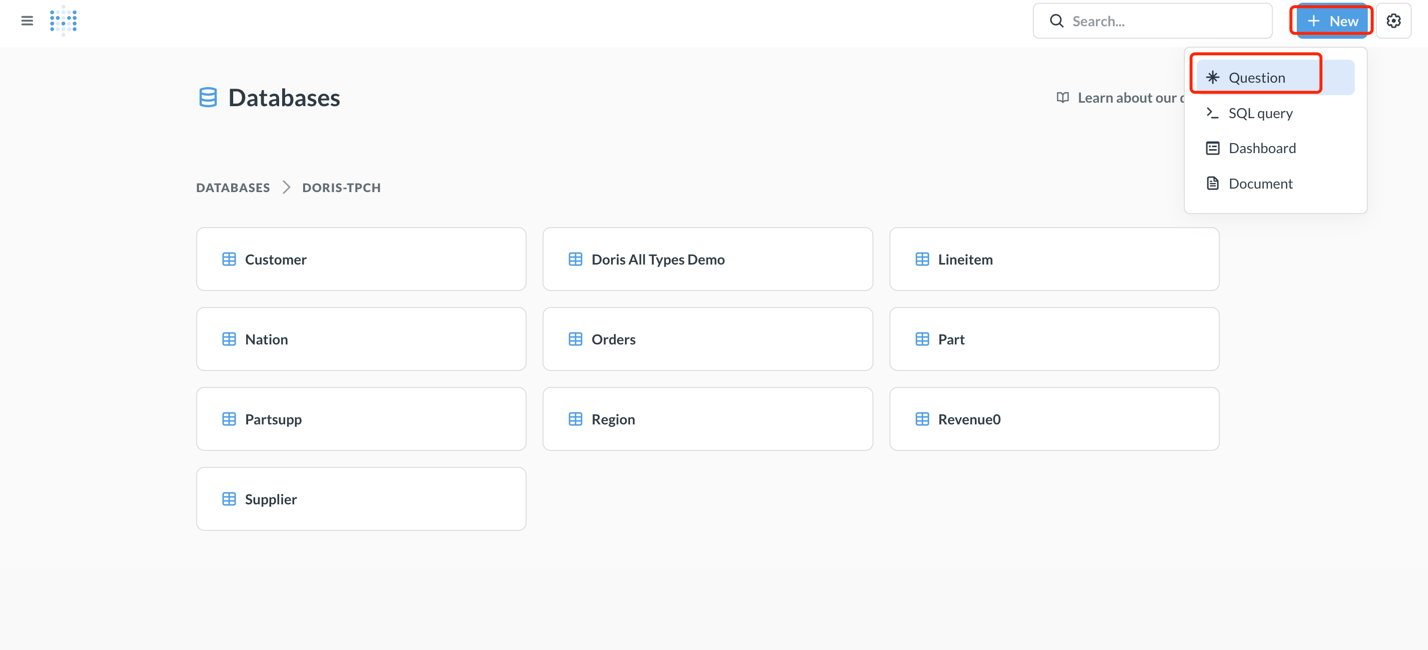
- Click the New + button in the upper right corner of the home page and select Question.
-
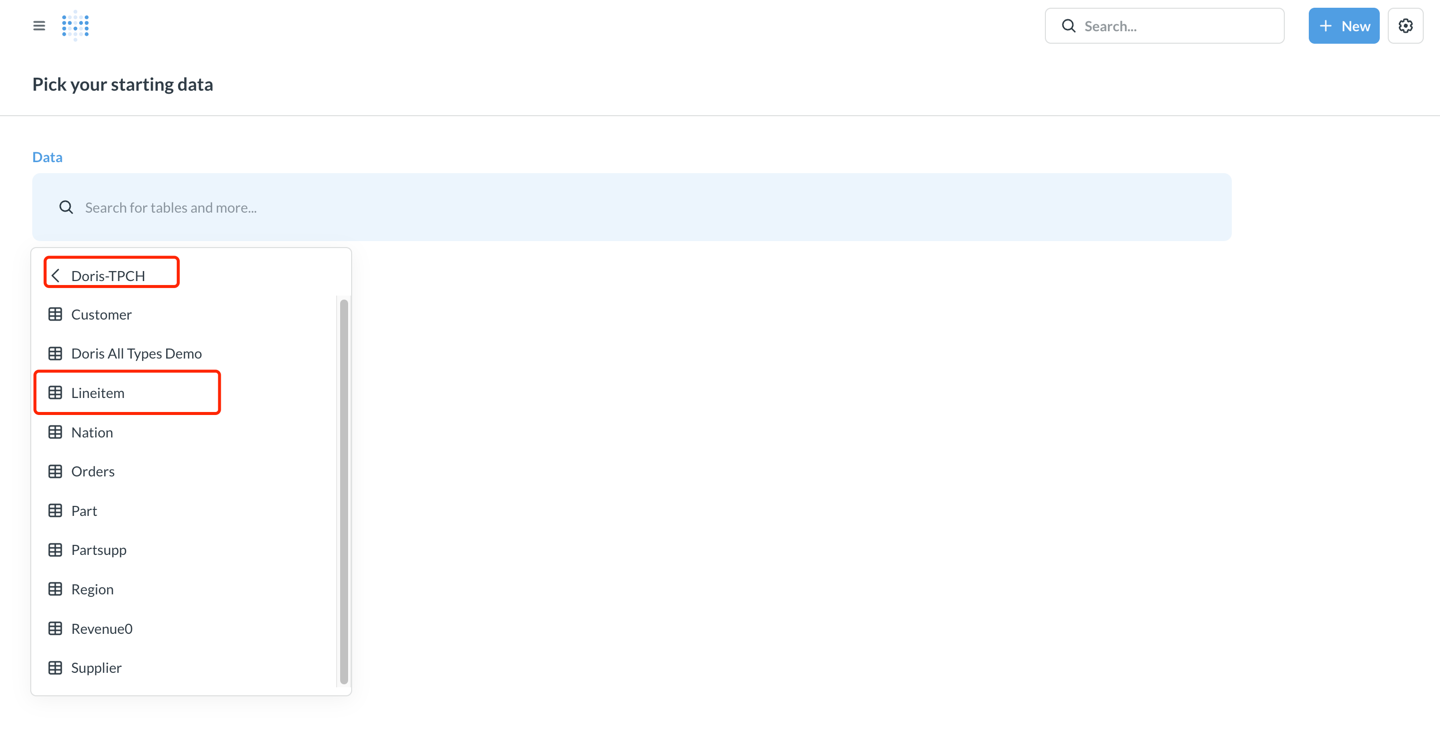
Select the data source:
Parameter Example value Database Doris TPCH Table lineitem
Build a custom metric with SQL
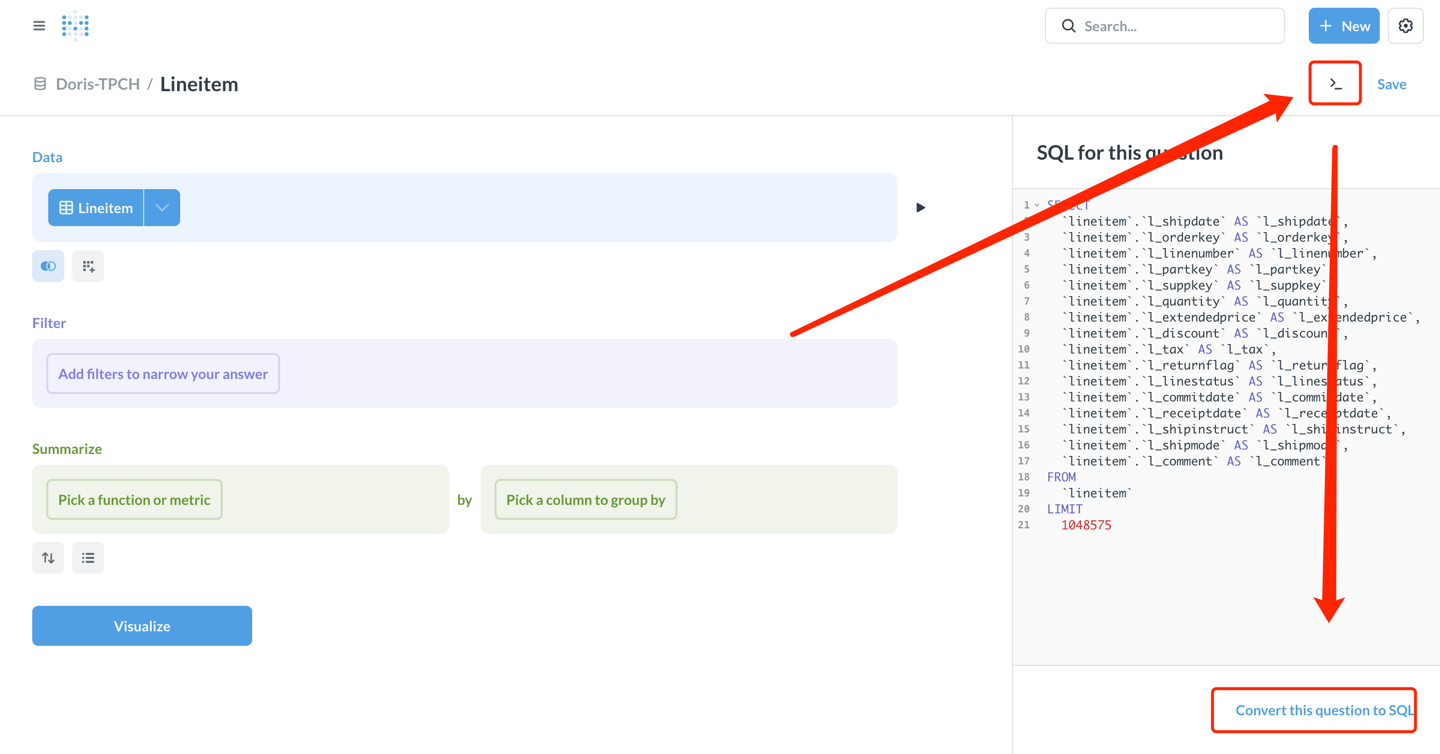
To compute the revenue, you need to use a custom SQL expression.
- Click view sql in the upper right corner, then click convert this question to SQL to edit the SQL.
-
Enter the following SQL query:
SELECT
  DATE_FORMAT(l_shipdate, '%Y-%m') AS ship_month,
  l_shipmode,
  SUM(l_extendedprice * (1 - l_discount)) AS revenue
FROM lineitem
WHERE l_shipdate >= '1995-01-01'
  AND l_shipdate < '1997-01-01'
GROUP BY
  DATE_FORMAT(l_shipdate, '%Y-%m'),
  l_shipmode
ORDER BY ship_month, l_shipmode -
Click the Visualize button in the lower right corner to view the results.
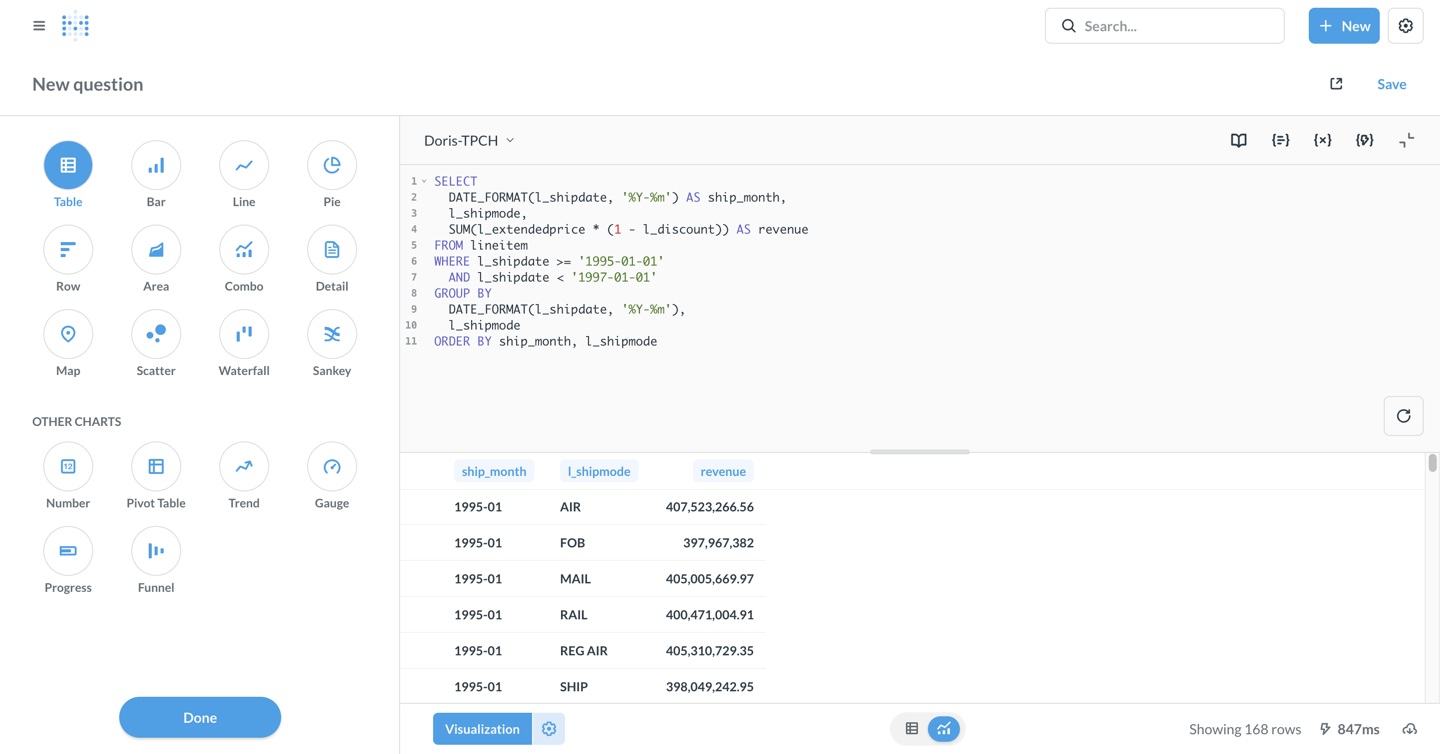
Configure the visualization chart
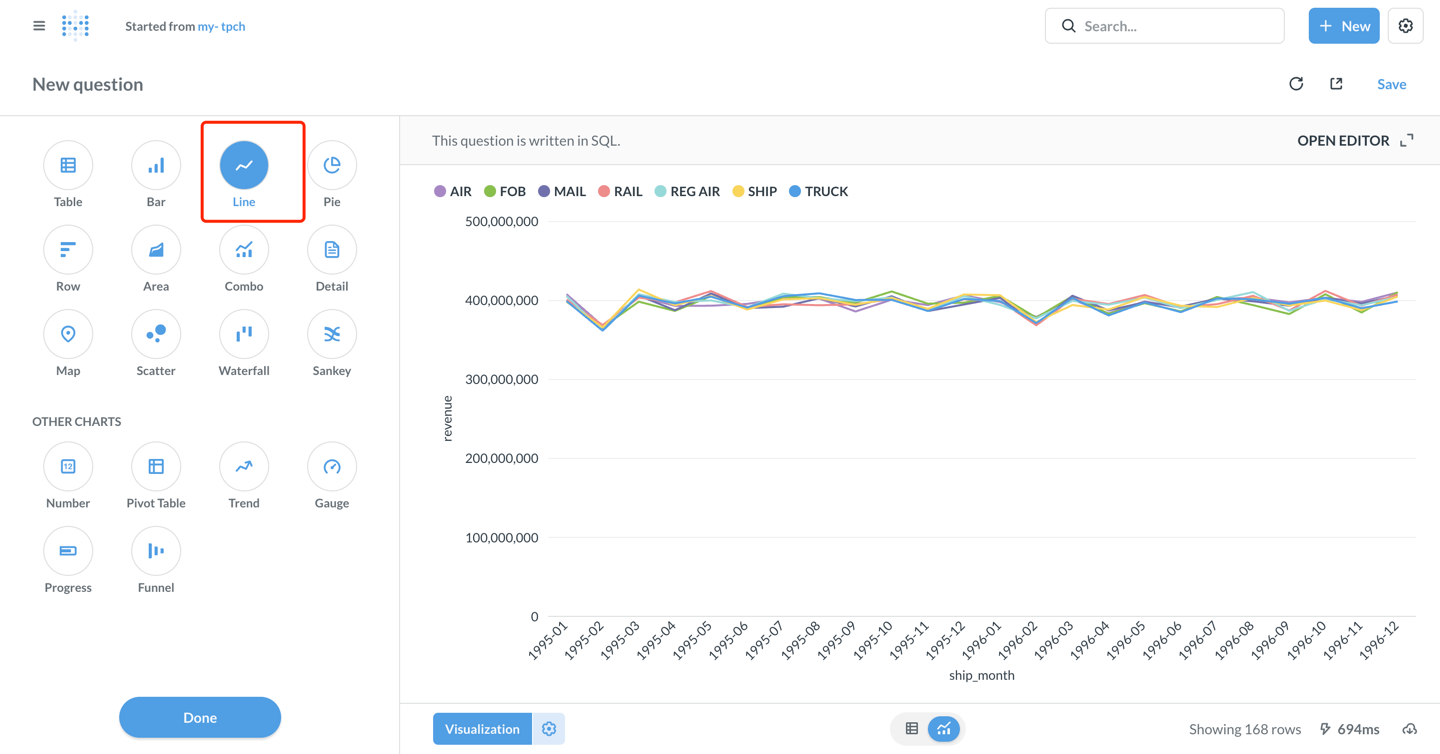
- By default, the result is shown as a table. Click the Visualization button in the lower left corner and select the Line chart type.
-
Configure the chart parameters as needed. Metabase generates the following configuration automatically:
Configuration Example value Meaning X-axis ship_month Shipping month Y-axis revenue Revenue Series l_shipmode Shipping method -
Customize the chart style:
- Click the Settings icon to adjust colors, labels, legend position, and so on.
- On the Display tab, you can set axis titles, number formats, and so on.
-
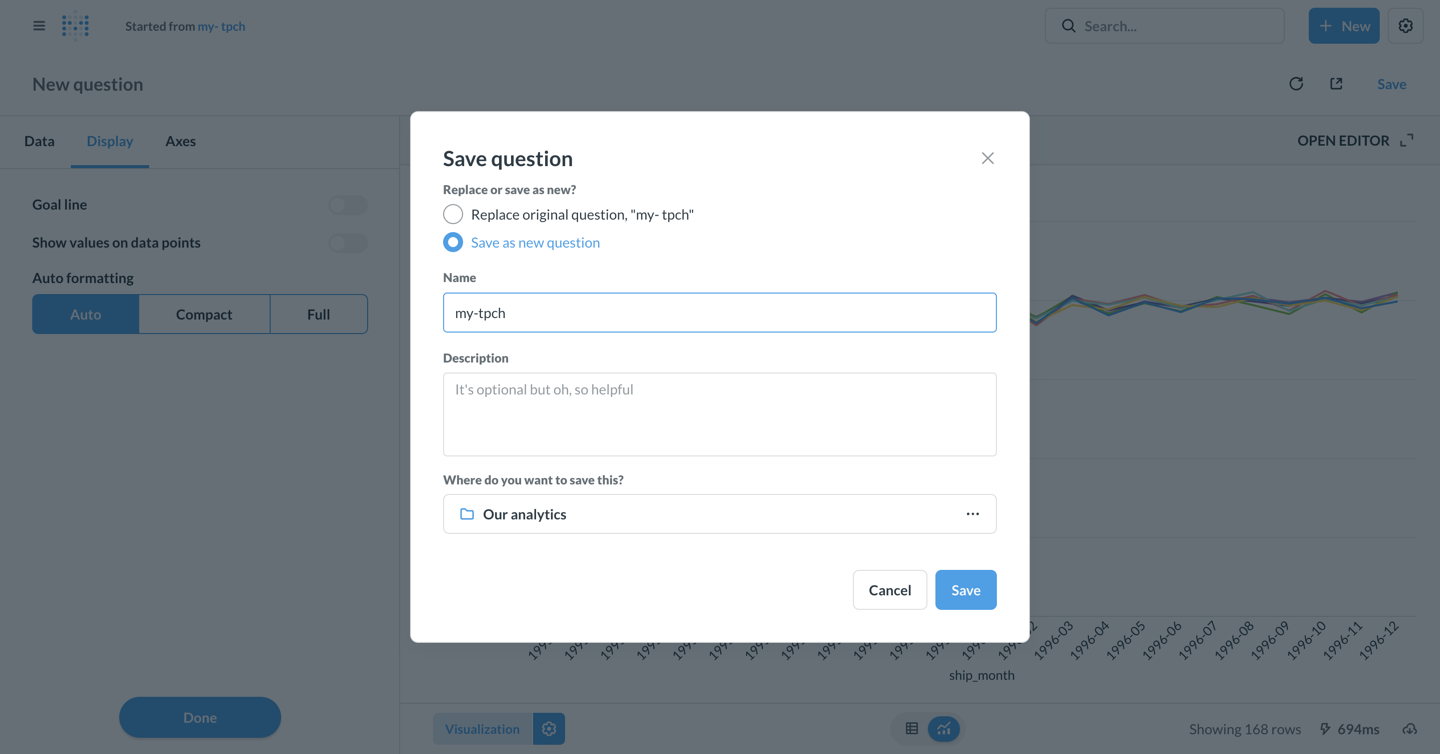
After the chart is configured, click Save in the upper right corner to save it.
-
Enter the question name my-tpch and select the Collection to save it to.
Create a Dashboard
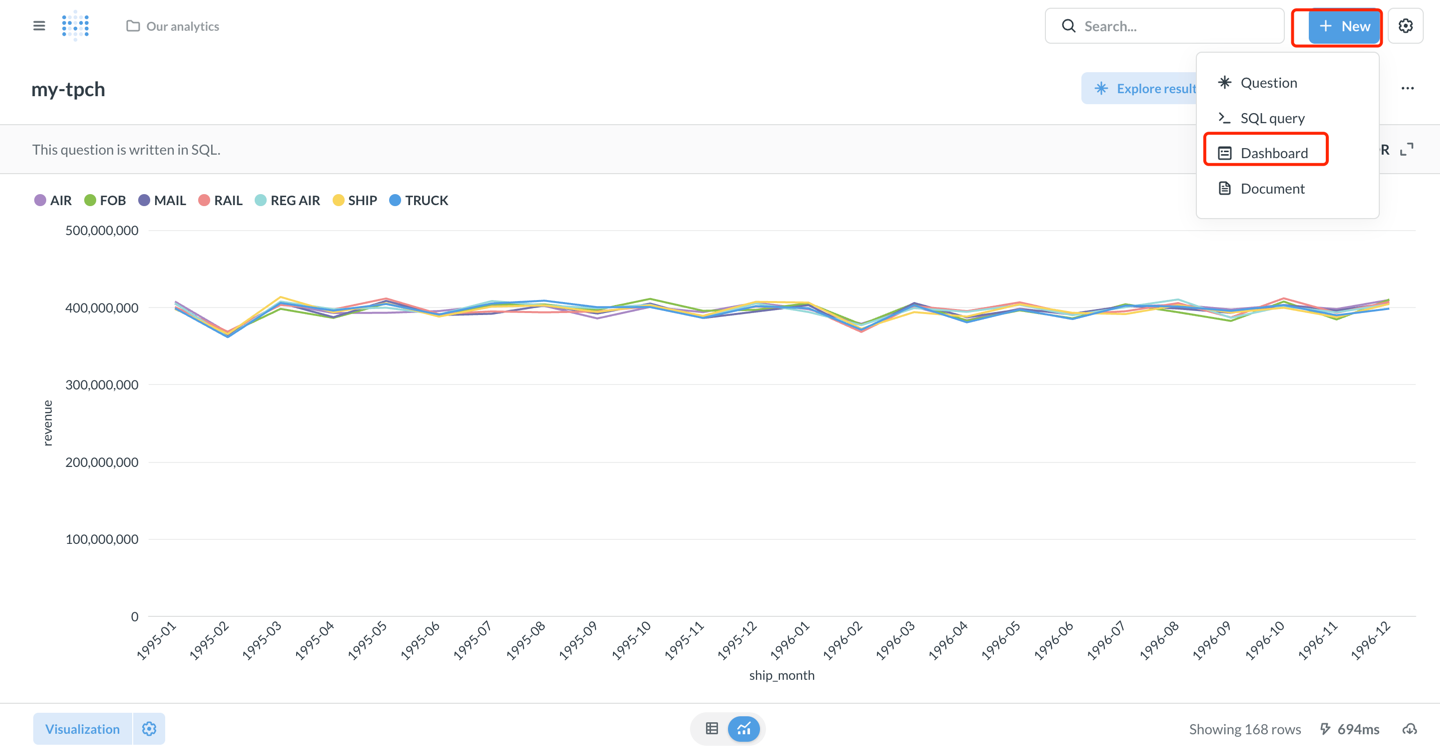
- Click + New > Dashboard to create a new dashboard, and enter the dashboard name my-tpch.
- Click Add a chart to add the saved Question to the dashboard.
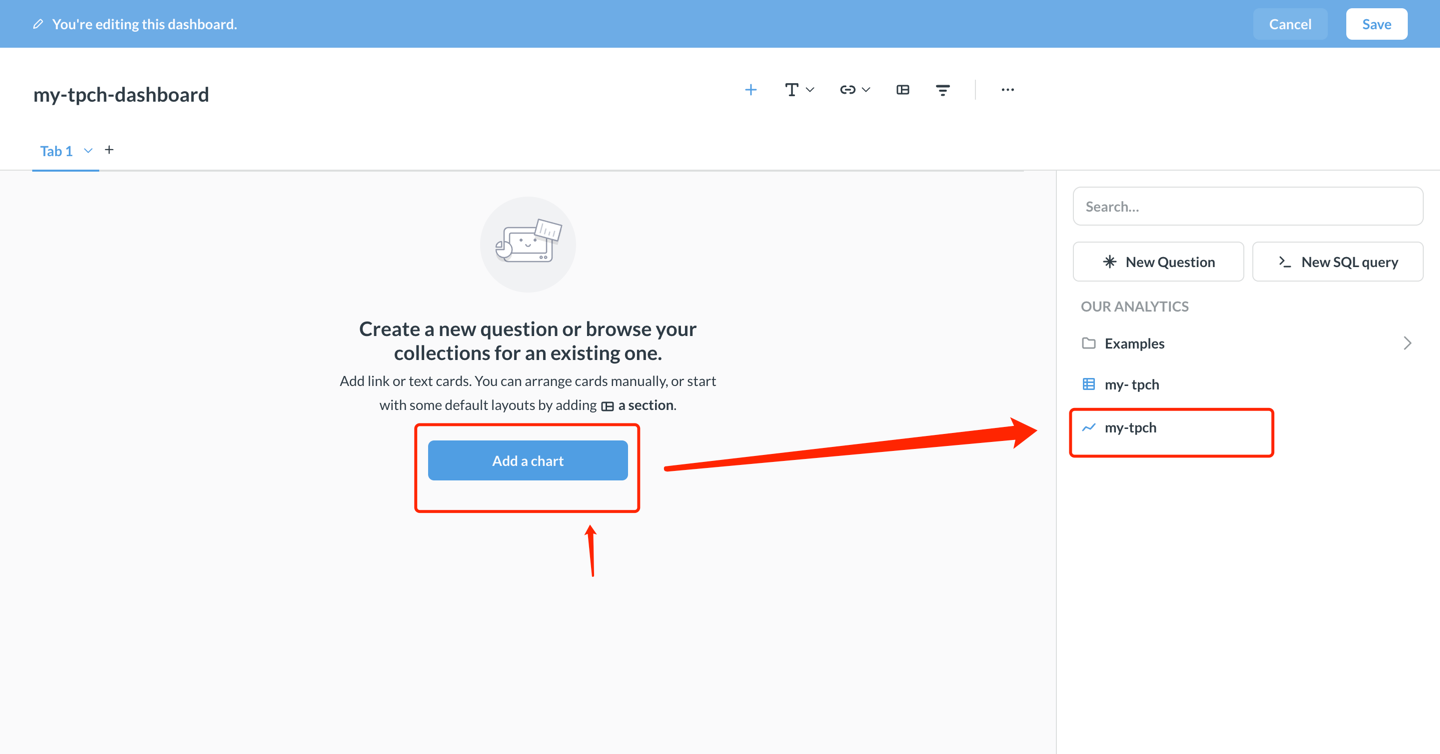
- Adjust the chart position and size, and click Save in the upper right corner to save the dashboard.
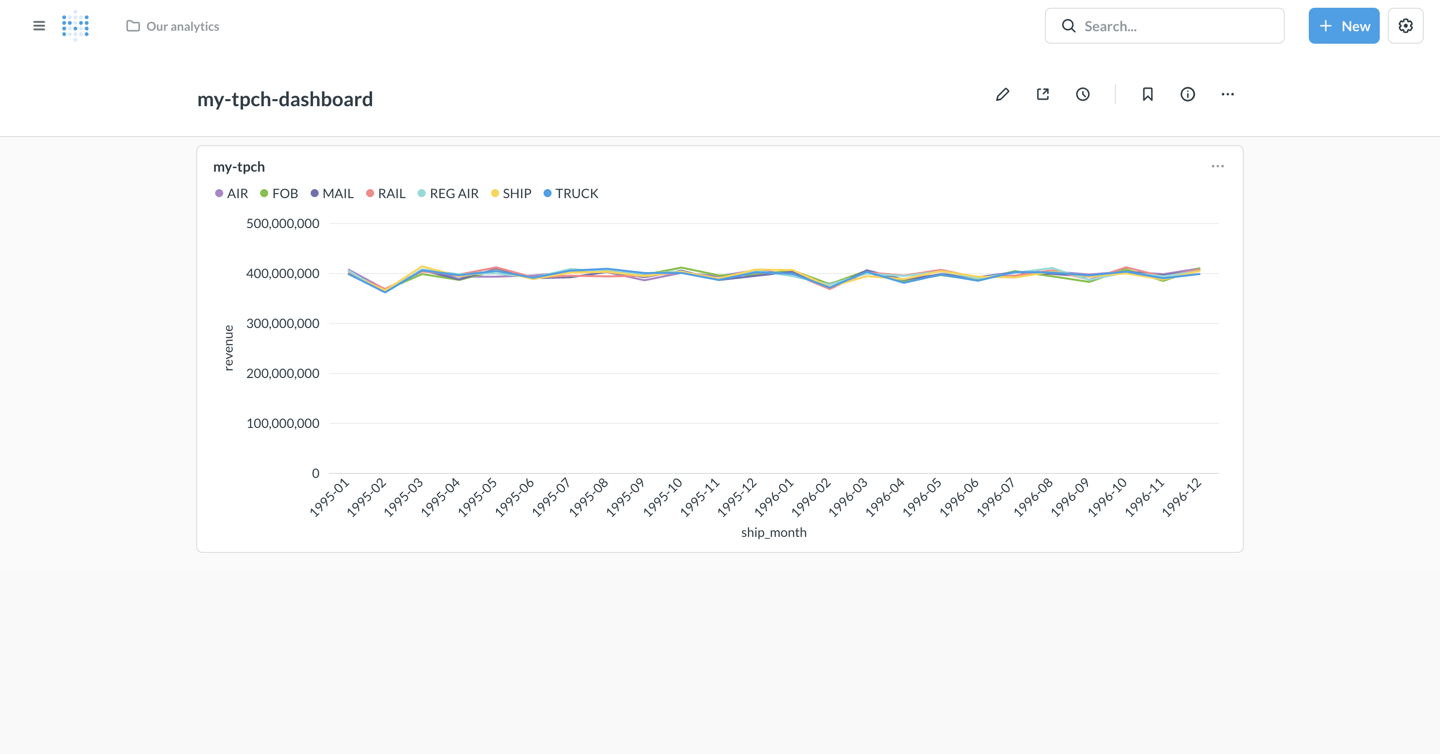
You have now successfully connected Metabase to Apache Doris and completed data analysis and visualization dashboard creation.
Driver capabilities and limitations
The following table summarizes the driver capabilities and current support boundaries.
| Capability | Support status and boundaries |
|---|---|
| Internal Catalog | Supports synchronizing and querying Doris internal tables |
| Native SQL | Supported. SQL is executed with the permissions of the configured Doris account; the driver does not force statements to be read-only |
| Query Builder | Supports group aggregation and bucketing by day |
| External Catalog | Supports synchronizing and querying data in Doris External Catalogs; the available scope and metadata completeness depend on the specific connector |
| Native template parameters | Supports numeric, text, and optional blocks |
| Complex types | Top-level ARRAY, MAP, JSON, and opaque complex fields remain visible; nested subfields are not expanded |
| Key and index metadata | Primary keys, foreign keys, indexes, and table permissions are not synchronized |
| Metabase write features | Data upload, write-back, Actions, data editing, and persisted models are not supported |
Advanced scenarios
Use Catalog to access external data
Set Catalog and Database (optional) on the connection page to synchronize tables in a Doris external Catalog:
| Configuration | Example value | Description |
|---|---|---|
Catalog | hive_catalog | Select the Doris Catalog named hive_catalog |
Database (optional) | warehouse | Select the warehouse database in the Catalog |
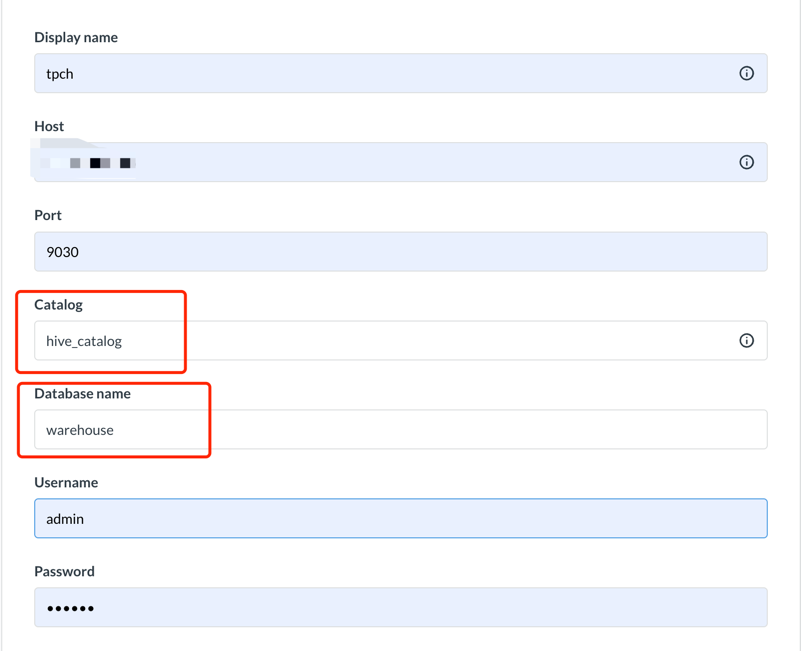
Specify the Catalog explicitly in the SQL query:
SELECT * FROM hive.warehouse.orders LIMIT 100;
Use parameterized queries
The driver supports basic Native SQL template parameters. The following example uses a numeric parameter, a text parameter, and an optional block:
SELECT
  category,
  COUNT(*) AS row_count,
  SUM(amount) AS total_amount
FROM orders
WHERE amount > {{min_amount}}
[[AND category = {{category}}]]
GROUP BY category
When category has no value, Metabase removes the entire optional block.
| Template capability | Support status |
|---|---|
| Numeric variables | Supported |
| Text variables | Supported |
Optional blocks [[ ... ]] | Supported |
| Field filters | Not supported |
Card references such as {{#card-id}} | Not supported |
| Dynamic table references | Not supported |
Data types
During metadata synchronization, the driver maps Doris types to Metabase base types as shown in the following table:
| Doris type | Metabase base type |
|---|---|
BOOLEAN | type/Boolean |
TINYINT, SMALLINT, INT, INTEGER, including display widths such as INT(11) | type/Integer |
BIGINT, LARGEINT, including display widths such as BIGINT(20) | type/BigInteger |
FLOAT, DOUBLE | type/Float |
DECIMAL | type/Decimal |
DATE, DATEV2 | type/Date |
TIME, including fractional-second precision | type/Time |
DATETIME, DATETIMEV2, TIMESTAMP | type/DateTime |
TIMESTAMPTZ | type/DateTimeWithTZ |
CHAR, VARCHAR, STRING, TEXT | type/Text |
JSON, JSONB | type/JSON |
ARRAY | type/Array |
MAP | type/Dictionary |
STRUCT, VARIANT, HLL, BITMAP | type/* |
Nested fields inside ARRAY, MAP, JSON, STRUCT, or VARIANT values are not expanded into Metabase subfields. LARGEINT maps to type/BigInteger and does not require conversion to a string.
Performance tuning recommendations
| Recommendation | Description |
|---|---|
| Use partition pruning | Add partition column filter conditions in the WHERE clause, for example WHERE date >= '2024-01-01' AND date < '2024-02-01' |
| Leverage materialized views | For complex aggregation queries, create materialized views in Doris to accelerate the queries |
| Control result set size | Use LIMIT to limit the number of returned rows and avoid loading too much data at once |
| Use query caching | Metabase automatically caches query results. Setting a reasonable cache time can improve performance |
Connection and usage tips
| Scenario | Recommendation |
|---|---|
| Driver installation | Make sure doris.metabase-driver.jar is placed in the Metabase plugins directory and restart Metabase |
| Time zone settings | If you encounter time zone issues, add serverTimezone=Asia/Shanghai to the JDBC connection string |
| Partitioned table optimization | Create Doris partitioned tables properly, partitioning and bucketing by time, to effectively reduce the data scanned by queries |
| Network connection | Use VPC private connections to avoid the security risks of public network access |
| Permission control | Refine Doris user account roles and access permissions, and follow the principle of least privilege |
| Metadata synchronization | When the table structure in Doris changes, click Sync database schema now on the Metabase admin page to synchronize manually |
| Performance monitoring | For slow queries, use SHOW QUERY PROFILE in Doris to analyze performance bottlenecks |
Abnormal data type display
If the data type display in Metabase is abnormal, first confirm that you are using the latest version of the Doris Driver. For the Doris largeint type, you need to convert it explicitly in SQL:
SELECT CAST(large_int_col AS STRING) FROM table